Make captions and an SRT file in your browser with Whisper
By Andri Peetso, maker of Creator Toolset · Updated
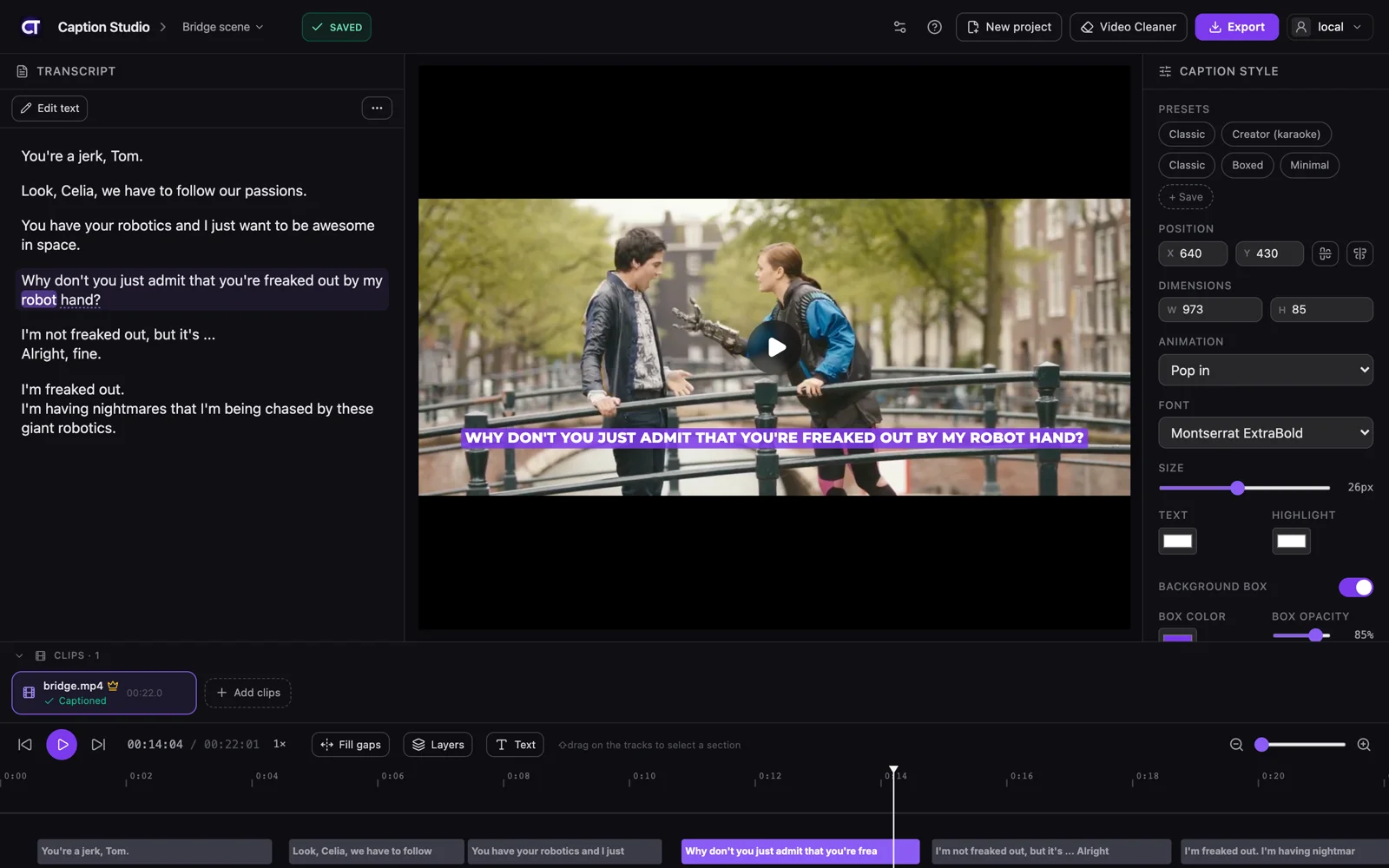
You have a finished cut and the captions are due this afternoon. You would rather the speech was not sent off to a transcription service to be turned into words.
Caption Studio in Creator Toolset runs the speech model in the browser tab. The app loads Whisper through the Hugging Face Transformers library, reads the audio of your file in the browser, and gives you a transcript to correct. The SRT, WebVTT and ASS files are made from that same transcript. The transcription does not send your audio to a transcription service. One exception: if you have saved a Deepgram key under Settings → API keys, the player starts on the cloud engine, so pick the local model in the engine picker next to Transcribe to keep the audio on your computer. The app also keeps a copy of each imported video on the server it runs on. The next section says where that is.
What runs where
| Step | Where it runs |
|---|---|
| Reading the audio and transcribing | In the browser tab, on your graphics card or processor |
| Editing words, timing and style | In the browser |
| SRT, WebVTT and ASS files | Made in the browser; the export has no server step |
| Keeping the imported video | On the Creator Toolset server the app runs on |
| Burned-in MP4 and transparent overlays | Rendered on that server |
In the Mac app, that server runs on your Mac, so the copy stays on your machine. On a hosted server or your own server, the copy is on that server. If a client asks whether the file left the room, tell them what happens: the transcript is made in the browser, and the video is stored on the server you run.
Expect a model download the first time
The first run downloads the model, and the browser keeps it afterwards. The app offers four local models, with the size it downloads:
| Model in the list | Download | Use it for |
|---|---|---|
| Base · Any language (recommended) | 291 MB | Any language, when you don't know which one is spoken |
| Base · English | 291 MB | English-only videos |
| Tiny · English (fastest) | 152 MB | Quick first drafts on a slow machine |
| Small · English (best quality) | 968 MB | English, and only on a browser with WebGPU |
The app checks for a WebGPU graphics adapter. If it finds one, the run uses it; otherwise it runs on the processor. A graphics run that stops responding for 60 seconds is stopped, and the app runs it again on the processor.
Caption a video, step by step
- Open Caption Studio from the home screen and drop the video on the import screen. It takes MP4, WebM and MOV. Drop several at once to caption them as one batch.
- In the setup dialog, check the model, then press Transcribe now. Use Base · Any language if you are not sure of the language.
- Keep the tab open while the model downloads and the run finishes. The progress bar shows the download first, then the transcription.
- Open the transcript panel and correct it. Use Edit text on a line, or Edit words letter by letter for one wrong word. Check names, numbers, dates and the first and last word of each line.
- For on-screen captions, pick the look under Animation in the style panel: Karaoke word highlight, Pop in, Fade or None. Skip this step if you only want a caption file.
- Open the export dialog and switch to the Captions only tab. Pick SRT subtitles, WebVTT subtitles or ASS subtitle file, and export. The file saves to your Downloads folder.
Which file goes where
- YouTube accepts
.srt,.vtt(WebVTT) and.sbv, along with several broadcast formats. Its help page on supported subtitle and closed caption files does not list.ass, so upload SRT or WebVTT there. - ASS keeps the styling. Use it with a tool that reads ASS files. It is not a YouTube upload.
- Other platforms: check each platform's help page for the caption files it accepts.
- A feed that takes no caption file: burn the captions into the picture with Video with captions, then the MP4 · H.264 captioned export. That render runs on the server.
The check
Play the caption file against the video with captions on, in a window about the width of a phone, with the sound off. Read every line once while it plays. Then check each name, number, date and product name against your source, because those are the words a model gets wrong. The job is done when the captions match what was said for the whole run, and the file loads in the platform's uploader with no error.
When it goes wrong
The likely failure is a name or number heard wrong, or the first word of a line missing. Fix it in the transcript panel, not in the SRT file. A caption file exported before the fix does not update itself, so export again.
Long videos are slow, and the source sets no length limit. The browser holds the whole audio in memory at 16 kHz, mono, as 32-bit numbers. That is about 230 MB for an hour (16,000 samples a second × 4 bytes × 3,600 seconds). If the tab slows or stalls, trim the file to the part you need in your editor first.
Browser Whisper is also slower on an older machine, and the Base model is not the largest Whisper model. Test it on a minute of your own speech before you commit a full video to it.
Where Creator Toolset fits
Caption Studio is one tool in the free Mac app, and the on-device transcription needs no AI key. You do not need a Claude or ChatGPT plan for captions. The app is free and open source, and you can download the Mac app here. It makes captions and caption files. It does not decide your cut. A wrong word in the transcript is still yours to fix.
For the next step, the transparent caption overlay guide shows how to export the same captions as a layer for your editor, and cutting silences in DaVinci Resolve covers the edit you usually make before captioning.
 Cut silences in Resolve
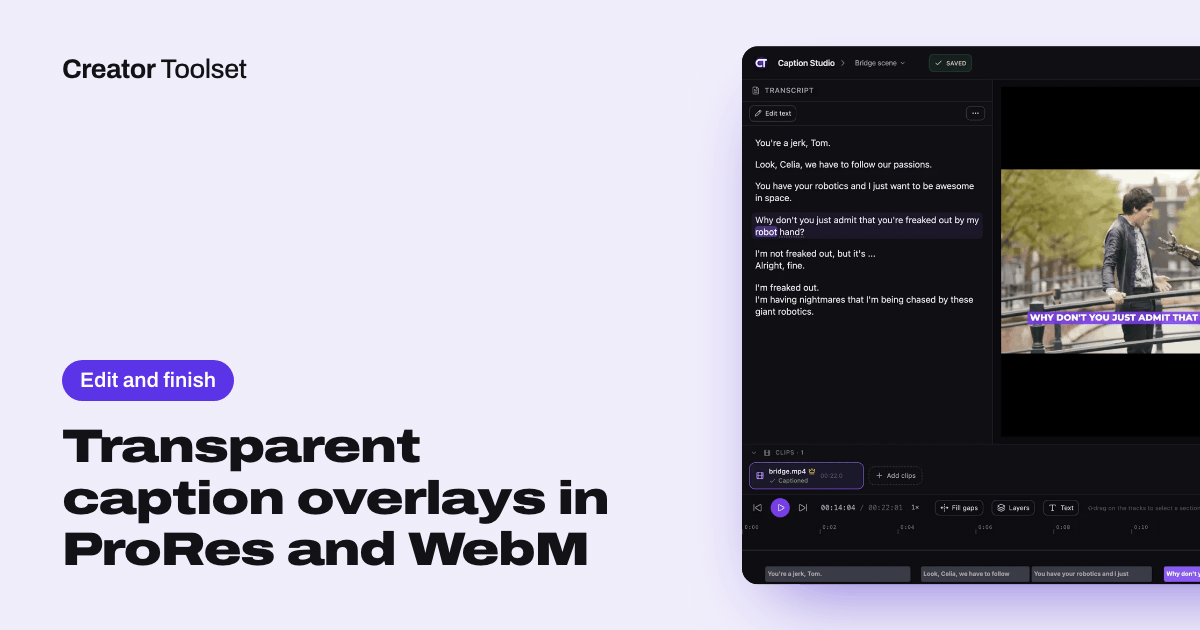 Transparent caption overlay export
 Remove location from phone video