Which DaVinci Resolve Studio AI features help a talking-head edit
By Andri Peetso, maker of Creator Toolset · Updated
You have a talking-head clip open in DaVinci Resolve. The menus have an AI Tools submenu, the Inspector has a Smart Reframe box, and a few features carry a Studio label. You want to know which of them help with this one clip and which are for a different job.
For a single talking-head edit, the transcript tools do the most. Transcribe the clip, then cut the restarts and the silences from the transcript. Add Voice Isolation if the room is noisy, and Ripple Delete Silence if you want the pauses removed without reading the transcript. Smart Reframe and Magic Mask matter when the cut goes vertical or needs a mask on one part of the frame. IntelliScript is for a clip that matches a written script.
The manual used here is for DaVinci Resolve 21.1. Blackmagic's feature comparison for Studio and iPad, dated September 2026 lists Magic Mask, IntelliScript, Smart Reframe, Voice Isolation, Subtitles and Transcriptions from Audio, and AI Assistants as Studio on desktop. Ripple Delete Silence is not an AI feature, and neither the comparison nor the manual marks it Studio-only.
The features, one by one
| Feature | What it does | Where it is | Studio? | What to check |
|---|---|---|---|---|
| Transcribe Audio | Writes a word-level transcript for each clip, with the words placed in time | Media Pool: right-click the clip, then AI Tools → Audio Transcription → Transcribe (manual, Text Based Editing, p. 995) | Yes | Read the transcript against the sound, especially names and numbers |
| Text-based editing | Select words or sentences in the Transcription window and delete them. In Timeline mode the same changes go to the timeline | Transcription window, and the Timeline icon in its upper right (manual, p. 1004 and p. 1006) | Yes | A selected sentence sets its In and Out points on the timeline. Play each cut, because a sentence that starts or ends in a breath may need a small nudge |
| Remove Silent Portions | Deletes the silences the transcript marks with dots, so the speech can go to the timeline on its own (manual, Understanding Silence, p. 999 to 1000) | The Transcription window's Remove Silent Portions icon, or the three-dot menu | Yes, part of the Studio transcription tools | Listen to each join. Everything the transcript marks as silence goes |
| Create Subtitles from Audio | Makes a subtitle track from the dialogue on the timeline | Timeline → AI Tools → Create Subtitles from Audio (manual, Subtitles and Closed Captioning) | Yes | Read every line. The manual says it can fail when dialogue overlaps on several tracks, so mute the other audio tracks first |
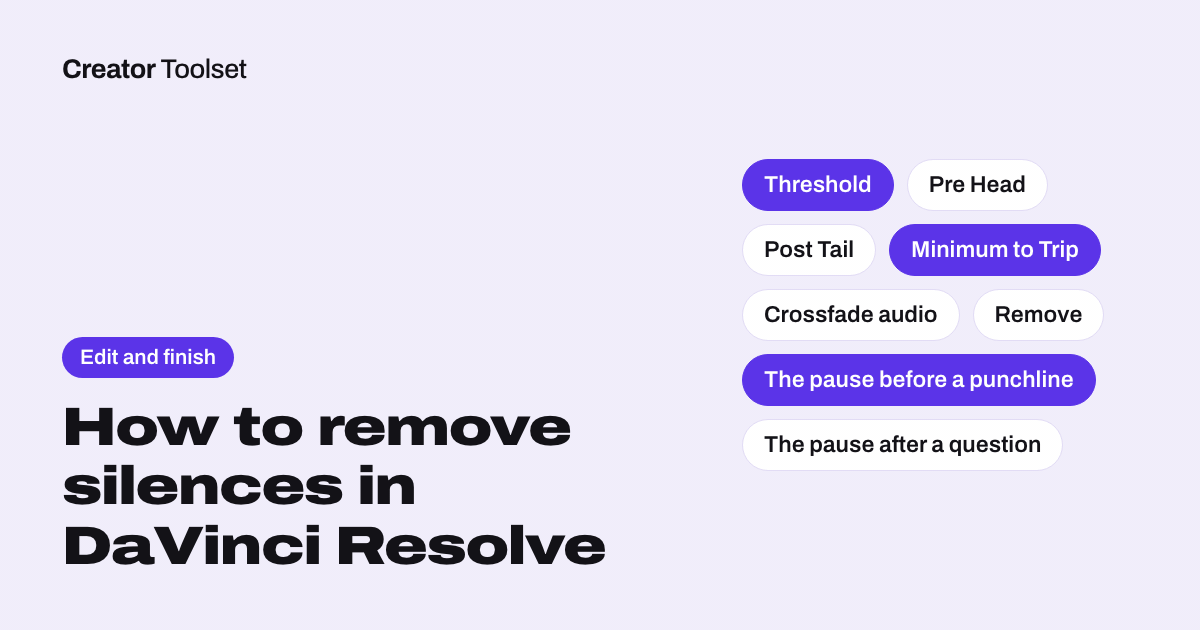
| Ripple Delete Silence | Shows the pauses in a clip as red stripes, then removes them and closes the gaps. The settings are Threshold, Pre Head, Post Tail, Minimum to Trip and Crossfade (manual, p. 773) | Clip → Audio Operations → Ripple Delete Silence on the Cut or Edit timeline | Not marked Studio-only in the manual | Set Minimum to Trip high enough to keep natural breaths. The manual warns that low values can leave the audio sounding chopped up |
| Voice Isolation | An AI plugin that removes loud background sound from a voice recording. Its Amount control mixes the isolated voice with the original, and the manual suggests 70 to 80 for natural results (manual, p. 774) | Cut page audio effects (manual, Video and Audio Effects in the Cut Page) | Yes | Listen to the consonants after processing. Lower the Amount if the voice sounds thin |
| Smart Reframe | Pans and tilts a clip to fit another aspect ratio, so a 16:9 clip keeps its subject in a 9:16 frame (manual, p. 772) | Inspector, Video tab, on the Cut and Edit pages | Yes | Play the reframed clip and check that the face stays in frame. The manual's method starts with a duplicate timeline at the new resolution |
| Magic Mask | Builds a mask of a person or a part of one, such as the face or hair, from clicks in the viewer. Blue clicks add to the mask and red clicks remove from it (manual, Matte Nodes, p. 2533 to 2534) | Fusion page, Magic Mask node. The Color page has a Magic Mask palette too | Yes | Check the edge at the hair and during movement. Matte Finesse softens the edge |
| IntelliScript | Matches the clips to a plain text script and builds a timeline with the best take on track one. Other takes go on separate tracks, disabled by default (manual, p. 1003) | Media Pool: select clips, right-click, then AI Tools → Create New Timeline Using IntelliScript | Yes | It matches the spoken words only. Check that track one holds the delivery you want. Use a script of plain sentences with full stops, not stage directions |
| AI Assistants | Lets an MCP-compatible AI assistant work with Resolve. The feature comparison marks it Studio and says it needs an MCP-compatible assistant | The setup guide shows the connection steps for Resolve 21.1 | Yes | Test on a copy of the project before you let the assistant edit the timeline |
Which to use for one talking-head take
- Transcribe the clip. Every later step depends on the transcript, so check it first, as the table says.
- Cut the restarts and silences in the Transcription window. Select the wrong take, delete it, and let Timeline mode mirror the change. Use Remove Silent Portions if the dots are the pauses you want gone.
- Clean the voice if the room is loud. Apply Voice Isolation on the Cut page and compare the result with the original at the same Amount.
- Make subtitles from the cut. Run Create Subtitles from Audio on the finished timeline, then read each line.
For the pauses without the transcript, Ripple Delete Silence works on the timeline clip directly. The silence guide shows the settings in more detail.
Where the AI stops short
The transcript tools work from the words. A retake that says the same words twice is still two takes until you choose one. The manual's text-based tools do not list a retake finder. IntelliScript is the closest, but it needs a script, and it chooses takes by matching dialogue alone, so it can miss the delivery you prefer. Choose the take by listening.
Smart Reframe and Magic Mask work from the picture, and they can get the edge wrong during fast movement. Play every reframed or masked clip through once at full speed before you export it.
Blackmagic changes which features need Studio from one release to the next, so check the Studio marker in the comparison for the version you run before you pay for an upgrade.
 Set up the Resolve AI assistant
 Cut silences in Resolve
 Edit a talking-head video