The Obsidian plug-in: keep your vault and the Workshop in step
By Andri Peetso, maker of Creator Toolset · Updated
Your reel script is a note in your vault. Its status says Ready, and the Workshop is open in another window, so you copy the title and the words across by hand. Next week the status changes and you copy that back too. The Creator Toolset plug-in for Obsidian does both copies for one folder of your vault.
The plug-in links the notes in one vault folder with the Content Workshop on a Creator Toolset server. A note with the status Filming, Editing or Ready becomes a Workshop session. Status changes go both ways, and the Workshop's Obsidian exports are written into the vault. It is part of the free, open-source Creator Toolset Mac app. You bring a Full access key from the app and nothing else.
What it is
The Creator Toolset plug-in is a desktop plug-in for Obsidian (the manifest marks it desktop only, minimum Obsidian 1.5.0). It sends the notes in one folder to the Workshop, keeps their status in step, and places Workshop exports as new notes. The Mac app runs the server on your computer, so the default setup needs nothing else. The sync calls only the server's notes and export routes.
Where it came from
We write our scripts in Obsidian. The vault is the production board, and the script for each reel sits in it as a note. The plug-in sends these notes to the Workshop, which turns a script into a reel or carousel.
What you do with it
The README gives a by-hand install. Run npm ci and npm run build in apps/obsidian (this needs Node.js), then copy manifest.json and main.js into <vault>/.obsidian/plugins/creator-toolset/. In Obsidian, go to Settings → Community plugins and turn on Creator Toolset. Obsidian's help page on community plugins says Restricted Mode must be off before you install a community plugin, so turn it off first if Obsidian blocks the step.
- In Creator Toolset, open Settings → Headless access, then Advanced, "Keys for scripts". Press New key, choose Full access, and copy the key. The dialog shows it once.
- Save the key in a file outside the vault, for example
~/.config/creator-toolset/key. Your vault may be synced or kept in git, so keep the key out of it. - Open the plug-in's settings tab. Set Server address to
http://127.0.0.1:43128for the Mac app on this computer, and Key file to the path from step 2. - Put notes in the folder named in Folder to sync (default
Scripts) with a status of Filming, Editing or Ready. They sync on their own. - To send a note at another status, open it and press the send icon or run the command Send to Creator Toolset. The note opens as a session in the Mac app.
- Run Sync now. The notice says "Creator Toolset: synced". Change a status in Obsidian, sync again, and the session in the Workshop shows the new status.
The first likely failure is a key that the plug-in cannot find. The notice names the key path, so check the path in Key file. The second is a key made at the wrong level. A Review only key reaches the Review pages but not the Workshop notes route, and the server refuses it, so the notice says "key refused" and the sync stops. Make a Full access key and try again.
How it works inside
Once a minute the plug-in checks whether the sync interval has passed. The default interval is 5 minutes, and the first check runs when Obsidian loads. A status change in a note in the folder starts a sync 3 seconds later. A change to the body of a note does nothing until the next sync.
Each sync runs three steps, one after another, and never two at once:
- Push. For each note in the folder that is synced or already linked, the plug-in sends
PUT /api/workshop/noteswith the title, status, format, details, body and the note's modified time. - Pull. It asks
GET /api/workshop/notes?since=for the sessions whose status changed. It writes back only the status property and achangedate. - Exports. It reads
GET /api/workshop/exports/pending, writes each file at its path, and confirms it with aPOSTto…/done. These files come from a plug-in export in the Workshop's Export menu (Edit exports…).
The plug-in keeps per-device state (which notes were sent, and the hash of each export) in Obsidian's local storage, not in the vault. The settings and the last sync time go into the plug-in's data file.
A conflict on status. The later change wins. The site's status comes back into the note only when the site changed it after the note was last modified. Because the push runs first in each sync, a status you set in the note goes up before any older site status comes down.
A conflict on an export. If you edited the exported file by hand, the new export goes to <name> (2).md beside it. Your edited file is left as it is.
What it needs and where it stops
It needs the key file, a reachable server, and desktop Obsidian. Without the key the sync does nothing, and the plug-in says so when you press Sync now. Opening Obsidian needs no key.
What stays in the vault. Notes outside the folder are never sent. The key is read from its file on each sync and is never saved in the plug-in's data. Nothing is contacted except the Server address you set.
What leaves the vault. A note in the folder is sent with its body to the server you set. By default that is the Mac app on your computer. If you point it at another server, the body goes there. The sync never changes that body.
Limits the code states.
- A moved or renamed note is a new note, because the link is by path.
- A refused key (401 or 403) stops the sync.
- A note with no status in the folder is not sent on its own. Send to Creator Toolset sends it as Idea. Other statuses are sent only once the note is linked, by Send or by a session the site already has.
- The server knows the generic status labels: Idea, Writing, Ready, Filming, Editing, Ready to post, Published and Shelved. The setting Statuses that sync on their own lists which labels the plug-in sends, but a label the server does not know is not matched to a Workshop status. Keep the generic labels unless a plug-in sets others.
If your scripts live in another editor, not in a vault, use the Workshop directly. The plug-in helps only when Obsidian is where the writing happens. For reel scripts with AI that still sound like you, see the script guide, and for the Workshop side, the Content Workshop article. To run the Mac app first, get it from /download.
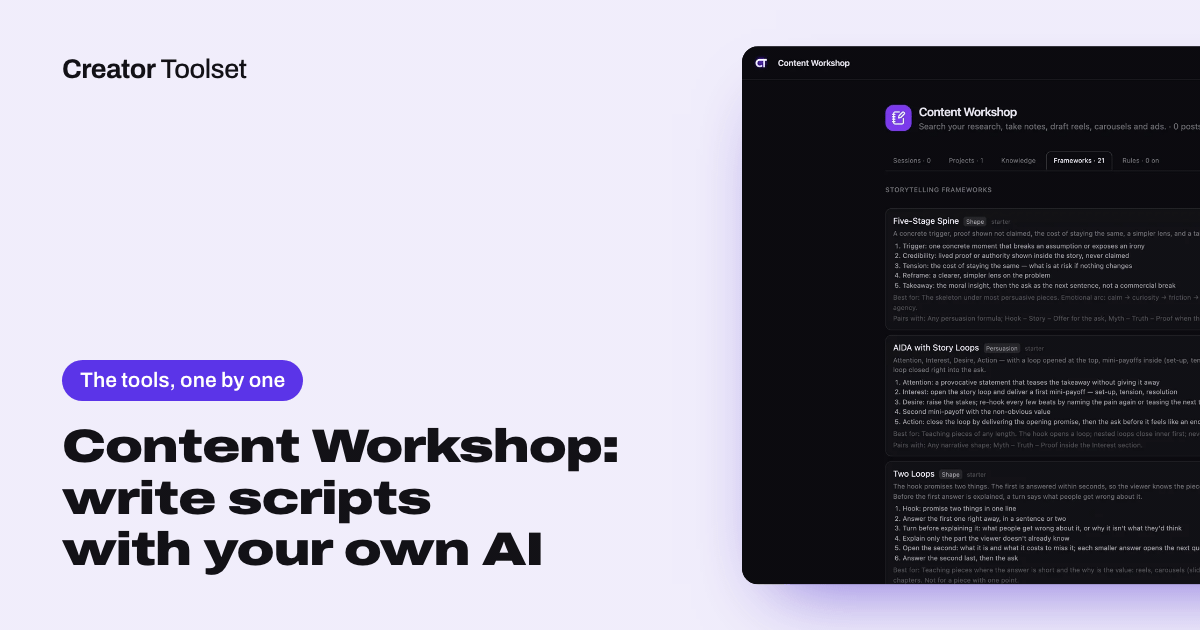 Content Workshop
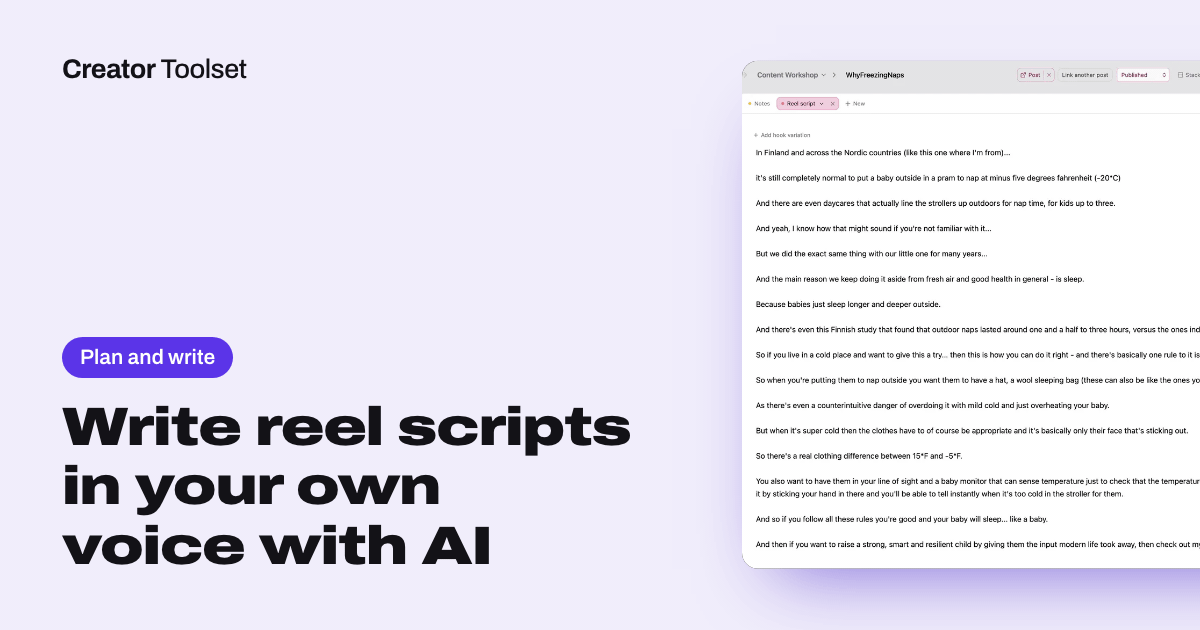 Reel scripts in your voice
 Open source tools by job