Review: share a cut and collect notes on the exact frame
By Andri Peetso, maker of Creator Toolset · Updated
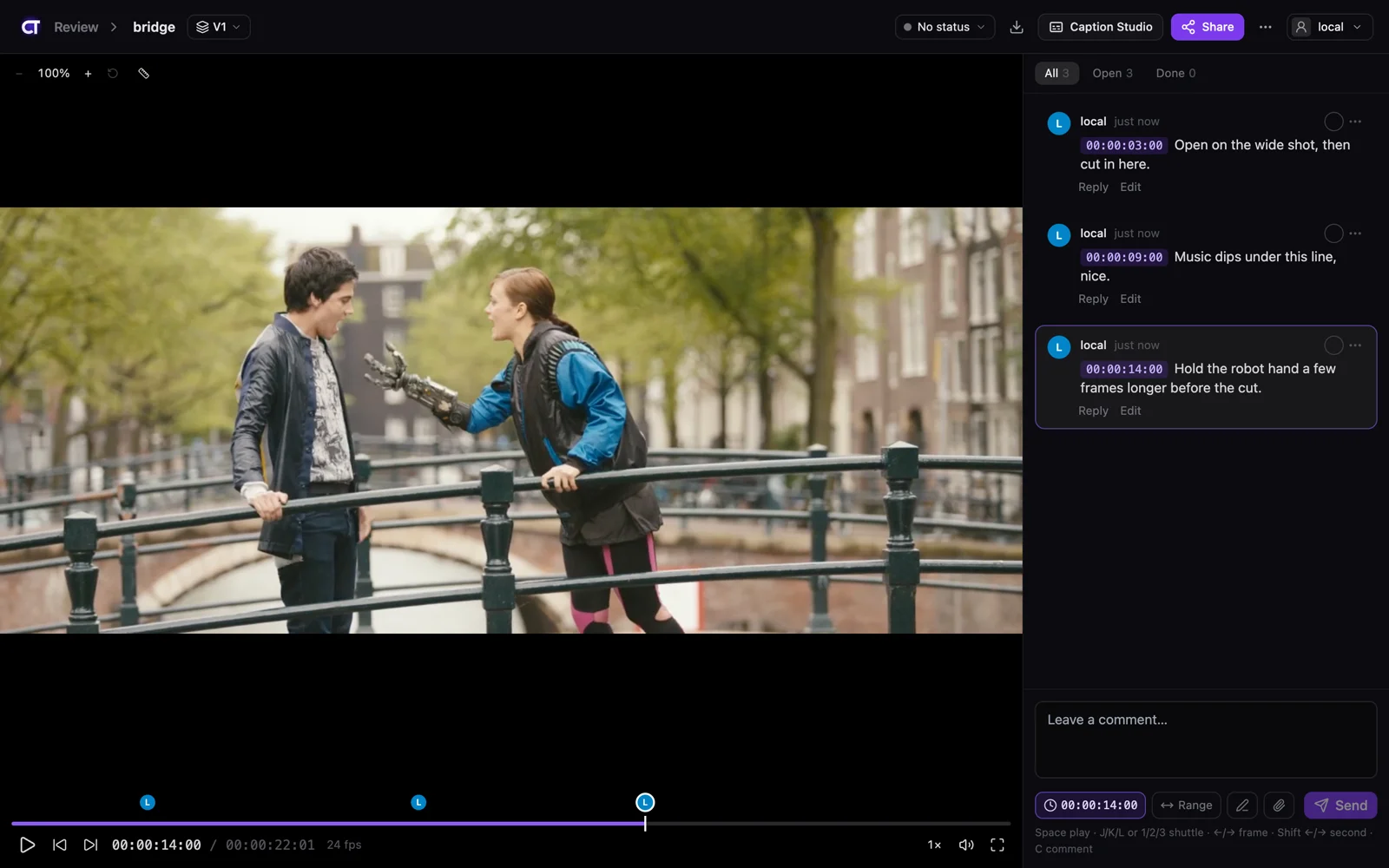
You get a note by email: "the cut drags near the end." Which second? You scrub back and forth, guess, and wait for a reply that says the guess was wrong. A review tool keeps each note on the frame it is about.
What Review is
Review is the video review tool in the free, open-source Creator Toolset Mac app. You upload a cut, share one link, and reviewers comment on a frame or a time range, draw on the picture, and approve or ask for changes. Reviewers need no account. Review uses no AI and no key, so there is nothing else to set up on the app's side.
Where it came from
Review does the job Frame.io does: a cut shared by link, comments on the exact frame, and a new version stacked on the same video. On Frame.io's own pricing page, as listed on 10 November 2026, the free plan covers up to 2 members, Pro costs $15 per member per month plus tax, and Team costs $25 per member per month plus tax. Frame.io does more than Review does, and the table shows where.
| Review | Frame.io, as listed on 10 November 2026 | |
|---|---|---|
| Share a cut by link | Yes, and reviewers need no account | Yes |
| Comments on the exact frame | Yes, on a frame or a time range, with drawing on the frame | Yes |
| Transcripts and captions | No, the Review code does not transcribe | Yes |
| Passphrase or expiry date on a share link | None found in the Review code | Yes, on Pro |
| Price | Free, with no plan | Free for 2 members; Pro from $15 per member a month |
If you need transcripts, Frame.io is the better fit. The free Frame.io alternatives compared article covers the other free options for client review.
Upload a cut and collect notes
- Open Review from the Make group on the home screen. Click Upload, then drop the videos on the dialog. Drop each video's timeline file on its row under Timeline file (optional) if you have one.
- Open the video and click Share. The popover holds the link and a switch, Reviewers can download. Turn the switch on only if reviewers should be able to download the original file.
- Send the link. A reviewer types a name in Your name, then writes in the Leave a comment… box. Turn on Attach to this timecode to pin the note to the current time. Click Draw on the frame first to mark the picture.
- The reviewer clicks Request changes or Approve. Reviewers can set only these two states. You set the status from a menu with Needs review, Changes requested, Approved and In progress.
- For a new cut, drag its card onto the older one. The target reads "Stack on top as version N" while the card is held over it. Open the Versions menu and choose Compare two versions side by side to see the cuts in Side by side, Wipe or Difference mode.
The first likely failure is a comment that will not post, with the message "Add your name first". Type a name in Your name and post again. The job is done when the note shows at the time you pinned it, and the status has moved to Changes requested or Approved. For the full sequence of a first client review, the timestamp feedback guide goes through it step by step.
How it works inside
When a file arrives, ffprobe reads it. If the browser can play the file as it is, Review plays the original. A browser-playable file is H.264 or AV1 in MP4, VP8, VP9 or AV1 in WebM, with 4:2:0 colour and AAC, MP3, Opus or Vorbis audio. Anything else gets a proxy made by FFmpeg: H.264 with libx264 at CRF 21 and the veryfast preset, the long side at most 1920 pixels, AAC at 192 kbps. The thumbnail is one frame at 1 second, or at half the length for a shorter video, 640 pixels wide.
A timeline file is identified from its first 4,000 characters. A file that starts with a brace is OpenTimelineIO. A file with an <fcpxml tag is Final Cut Pro XML, and one with an <xmeml tag is FCP 7 XML, the format the code comments name for Premiere and Resolve. Lines with timecodes are read as a CMX3600 EDL, which needs the video's frame rate. Other XML is refused. The file is stored as you sent it, read again on each view, and its tracks appear under the player.
A comment saves its time in seconds, rounded to milliseconds, with an end time when it covers a range. A drawing is stored as strokes in red by default (#ff3b30) and painted onto the frame image when someone opens that frame. A reviewer has no account: the browser makes a random key on the first visit, keeps it in local storage, and sends it with each request. FFmpeg (GPL) does the proxies and thumbnails, and it is listed in the app's THIRD_PARTY_NOTICES.md.
What it needs and where it stops
Review runs in the Mac app on Apple silicon, macOS 14 or later. It needs no key and no AI. The Mac app serves Review on 127.0.0.1 on your Mac, so a link from the app opens on that Mac. To reach it from your own network, turn on Access from other devices in the app and put the Mac's address in the link. A client on the internet needs your own server, set up as in SELF_HOSTING.md.
The code sets these limits:
- Uploads up to 100 GiB per video, sent in 16 MB parts.
- Timeline files up to 30 MB, with at most 9 video and 9 audio tracks, 5,000 clips and 500 markers.
- Comments up to 4,000 characters, 5,000 comments per video and 50 drawing strokes per comment.
- 100 reference images or videos per version, and 10 per comment.
- Trash kept for 30 days. An upload that is never finished is removed after 7 days.
Before you send a link to a client, open it in a private window on a different network. If it does not load, the link reaches only your Mac or your own network, and you need your own server first.
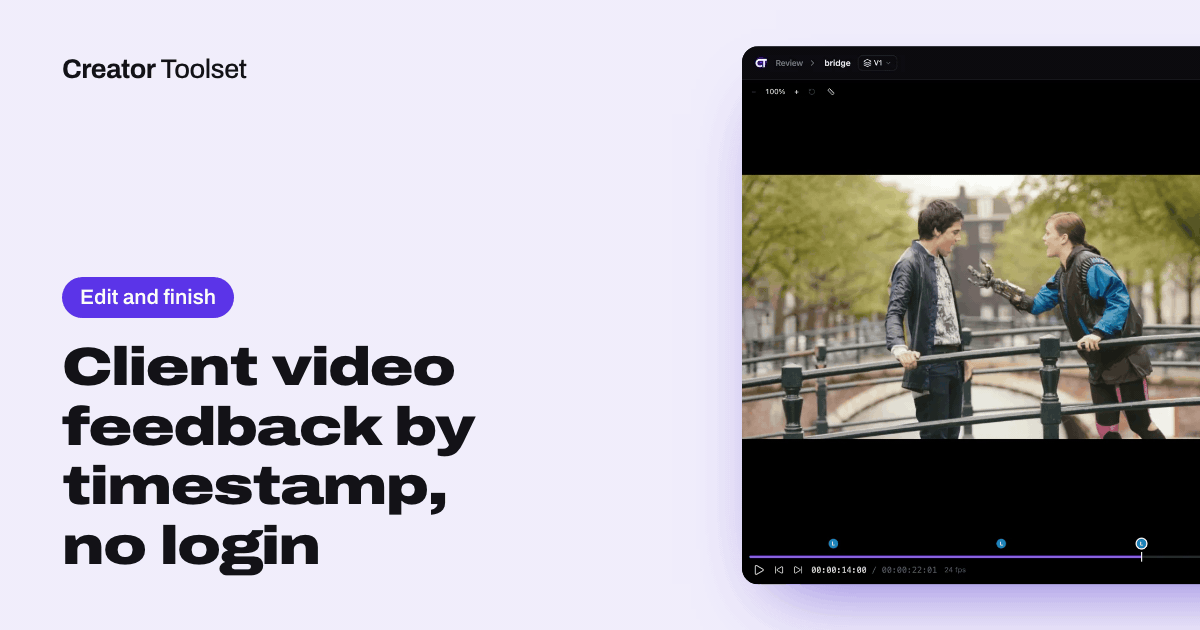 Frame-accurate client video feedback
 Free client review tools compared
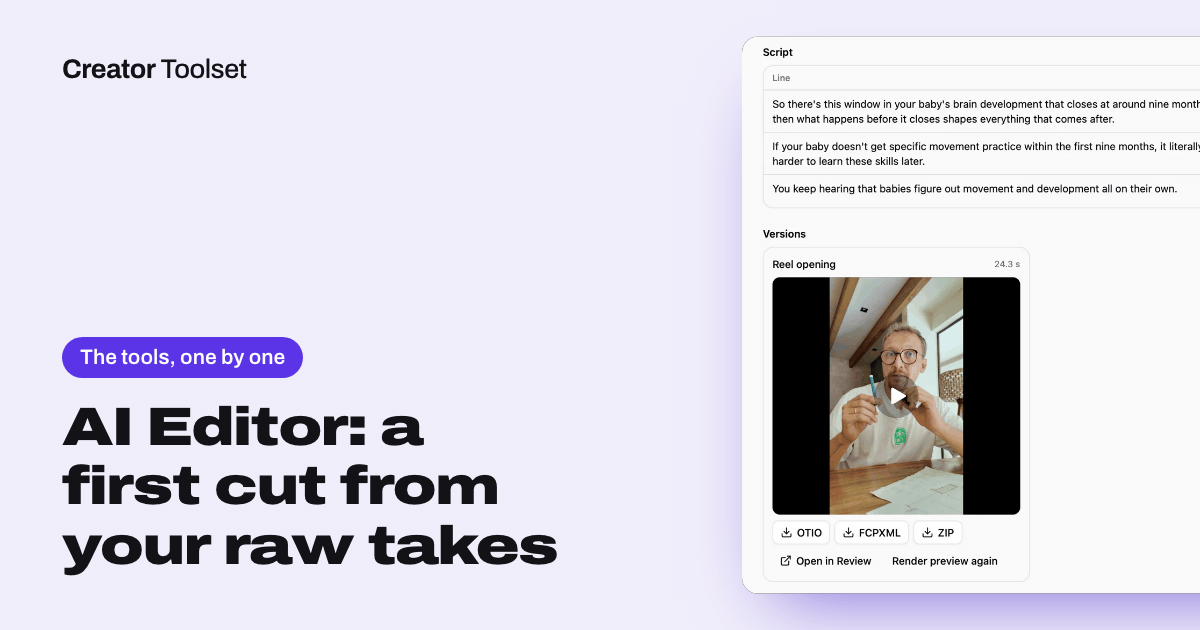 AI Editor first cut