How to build a Claude Skill for one of your content jobs
By Andri Peetso, maker of Creator Toolset · Updated
You record a voice memo in the car with an idea for a reel. Later you paste the transcript into Claude and type the same request you typed last week: "turn this into a reel script, keep it short, use my words, end with one ask." Each time you explain the same things. A Skill saves that explanation in a folder, so Claude reads it when the request matches.
A Skill is a folder with one required file, SKILL.md. The file starts with two fields: a name and a description. The description tells Claude when to use the Skill. The rest of the file holds the instructions. You can add examples and extra files, but the folder with SKILL.md is enough for most content jobs. The steps below build one for turning a voice memo into a reel script in your own voice.
What a Skill is, and where it runs
Anthropic's developer documentation describes a Skill as a folder of instructions that Claude loads when the task matches. Claude reads the name and description of every Skill it has, all the time, and loads the full instructions only when one of them fits. That keeps a long Skill from taking space in every chat.
Where you can use one depends on the product:
- In the Claude apps, you upload the Skill as a ZIP file of the folder. Go to Customize, then Skills, click +, choose Create skill, then Upload a skill. The ZIP must contain the folder, and the folder must contain
SKILL.md. - In Claude Code, put the folder in
~/.claude/skills/to use it everywhere, or in.claude/skills/inside one project. - In the API, you upload the Skill through the Skills API. A Skill uploaded in one place does not appear in the others.
Plans differ by source, so check yours. The Claude Help Center's "What are Skills?" page says Skills are available on Free, Pro, Max, Ultra, Team and Enterprise plans, with code execution enabled. Anthropic's developer documentation says custom Skills in the Claude apps are on Pro, Max, Ultra, Team and Enterprise plans. The two pages differ on the Free plan, so look at the Skills settings on your own account to see what you can create. Only use Skills you wrote, or ones you have read in full. A Skill can direct Claude to run code, so treat a Skill from anyone else like software you are installing.
Step 1: Name the folder and the Skill
Make a folder called voice-memo-reel-script. Inside it, create SKILL.md. The name in the front matter must be lowercase, use only letters, numbers and hyphens, and be at most 64 characters. It cannot contain the words "anthropic" or "claude". The Skills documentation sets these rules.
Step 2: Write the description
The description is the most important line. Claude matches your request against it, so it must say what the Skill does and when to use it. The limit is 1,024 characters, per the Skills documentation.
---
name: voice-memo-reel-script
description: Turns a voice memo transcript from the creator into a 30 to 40 second reel script in the creator's own words. Use when the user pastes or uploads a transcript of a voice memo and asks for a reel, a script, a hook or a short video from it.
---
If the description says only "writes scripts", Claude may not pick the Skill when you paste a transcript. If it names the input ("a transcript of a voice memo") and the output ("a reel script"), the match is much more likely.
Step 3: Write the instructions
Under the front matter, write the steps in the order Claude should follow them. Keep them short and concrete.
# Voice memo to reel script

## Steps

1. Read the whole transcript once. Find the one claim or moment the creator keeps coming back to.
2. Write a hook of one line, in the creator's words where possible, that opens on that claim.
3. Write three to four short lines of body. Each line is one point, with one example from the memo.
4. Write one ask as the last line. Use the ask the memo names. If it names none, write "Save this for next time."
5. Count the words. A 30 to 40 second script is about 75 to 100 words spoken.

## Rules

- Use the creator's own phrases from the memo. Do not replace them with smoother words.
- Do not add a fact, number or name that is not in the memo. If a fact is needed, write it as [CHECK: ...].
- Remove "um", repeats and false starts. Keep every example the creator gave.
- Do not open with a question, a teaser, or "In today's world".

## Output

Return the hook, the body lines and the ask, each on its own line, then one line listing any [CHECK] items.
Every rule should come from a real failure you have seen. If the drafts add facts, the rule about facts matters most. If they sound like a brochure, add an example of your own writing to the Skill.
Step 4: Add two examples of your own writing
Add the examples to the same SKILL.md, under a heading called Examples. Use two scripts you wrote yourself and are proud of, pasted in full. Put one short label above each, such as "Script I wrote, short and funny" and "Script I wrote, plain and practical," so Claude sees the range.
## Examples

### Example 1: [label]
[paste your own script here, in full]

### Example 2: [label]
[paste your own script here, in full]
Use scripts you actually wrote, not ones an AI drafted. Two is enough to start. More examples make the Skill longer, and every example is read each time the Skill runs.
Step 5: Package it and upload it
Zip the folder itself, so the ZIP opens to voice-memo-reel-script/SKILL.md. Upload the ZIP in the Claude apps as described above. If the upload fails with a message about a missing skill.md file, the file is outside the folder or misspelled. Open the ZIP and check.
Step 6: Test it with three briefs
Make three test transcripts. Write them yourself, or paste three real memos you recorded. Each one tests a different part of the Skill.
- A short memo with one story. Check that the hook uses the story's own words, and that the body keeps the example.
- A messy memo with three ideas and some tangents. Check that the Skill picks one claim, and does not turn all three into a list.
- A memo with a fact in it that the memo does not back up, such as a number you said from memory. Check that the fact is marked [CHECK] and not repeated as true.
Run each test in a new chat, so earlier chat does not help the Skill. Read every result aloud. Compare the hook with the one you would have written.
Where it goes wrong, and the fix
If the Skill does not run, the description does not match your request. Paste the request again and ask Claude which Skill it used. If it used none, rewrite the description with the exact words you use in the request.
If the scripts come back generic, the examples are too short or the rules are too general. Replace one example with a longer script of your own, and make the first rule about the words you use.
If a fact appears with no [CHECK] marker, add the rule to the Rules section and run the third test again.
When a Skill is the right thing, and when a Workshop project is
Use a Skill for one repeatable job that starts from a file you have: a memo, a transcript, a brief. You can run it in the Claude app or in Claude Code, and you keep the job small.
Use a Content Workshop project when the job is the whole content process for one brand. A project holds the audience, the instructions, your own posts, the frameworks and the rules in one place. A Workshop piece has locks, a Not mine check and an accuracy check, and the piece stays with its session. The Workshop's writer runs on your own Claude Code or Codex on your Mac, not on an Anthropic API key.
The two work together. The Skill turns the memo into a first draft. The Workshop project takes that draft, with your own posts already in its folder, and carries it through the rest of the job. Build the Skill first if you already have memos. Start with the project if you are setting up a brand from scratch.
You are done when
- The folder holds
SKILL.md, and the front matter has a name and a description that says what the Skill does and when to use it. - The instructions and rules are short, and each one came from a real problem.
- Two examples of your own writing are in the file.
- The ZIP uploads, and the Skill appears in your list and is switched on.
- All three test briefs give results you would post after an edit, and the one with the unsupported fact marks it.
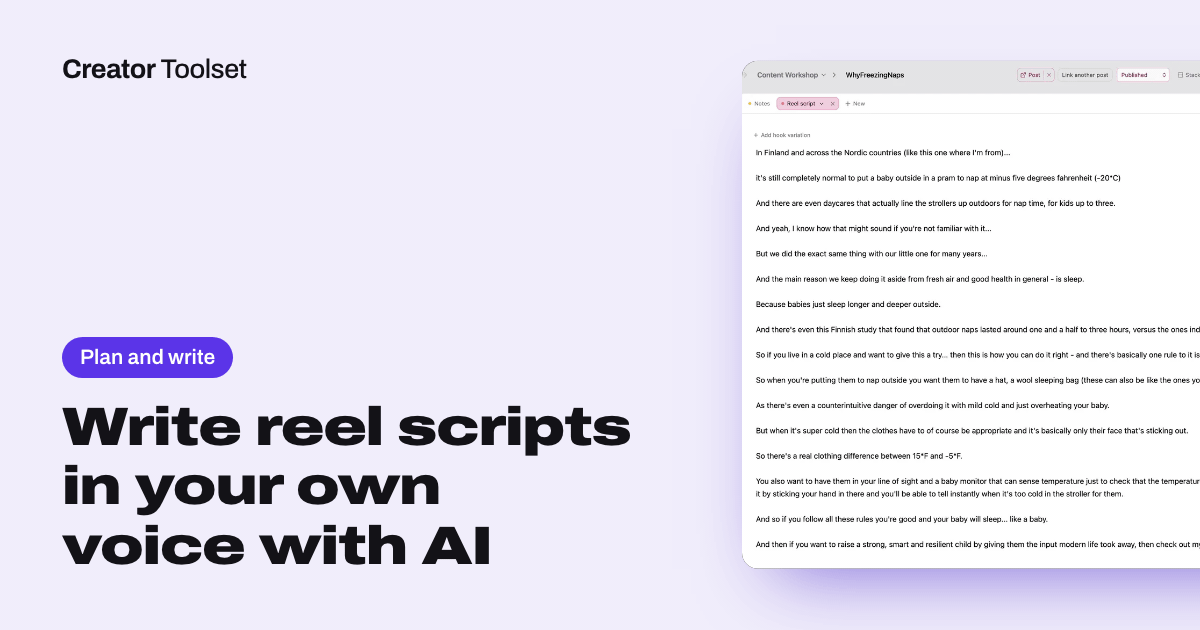 Reel scripts in your voice
 Claude Code for non-coders
 Use your AI plan in other apps