The assistant: ask the app to do the job
By Andri Peetso, maker of Creator Toolset · Updated
You have a finished cut open in Review, a client's note in your inbox, and no clear memory of which project the video belongs to. Instead of opening five pages to hunt for it, you click the small button in the corner of the app and type what you want.
What it is
The assistant is a chat panel inside Creator Toolset, the free, open-source Mac app. You type or speak a request, and an AI answers in the panel and does the work in the app: it finds a Workshop session, opens a Review video, schedules a task, or sends a dropped recording to Video Notes, Review or Caption Studio. You bring your own AI, connected under Settings → Providers. The app does not supply one.
Where it came from
The assistant is our own idea: one chat, reached from the bubble in the bottom right of the screen, that can do everything the app can.
What you do with it
- Open Settings → Providers and connect the AI you already pay for. Until one is connected, the app refuses a message with "Connect your AI first".
- Press the assistant button in the corner. The panel opens docked to the side. You can drag it, or double-click to float it over the page.
- Type in the Message box and press Enter. While a reply is running, Enter queues the next message. Press Stop the reply to end a reply; the text written so far stays in the chat, marked as stopped.
- To give it a file, press Attach or drop a video or recording onto the panel. Then say what to do with it, such as "send this to Review".
- When Claude Code asks to run something on your Mac, an approval card appears. Press Allow or Deny.
- Press New chat to start over. The old chat stays under Earlier chats, which keeps the last 100.
To check that it is working, ask "what is set up?". The assistant reads your setup and answers from it. If that reply is empty or says the AI is not connected, go back to step 1.
The first likely failure is a dropped file the assistant cannot find. Dropped files are kept for 7 days, so a file older than that has to be dropped again. Another is an approval that answers "Too late": an approval that waits 10 minutes expires, so ask for the action again.
How it works inside
The assistant runs each reply on the AI you connected, on your paired Mac. The server keeps the last 20 messages for context, and a message can be up to 50,000 characters.
Not every AI gets the same tools. Claude Code, Codex, Gemini CLI and Grok get the app's tools. Any other AI answers from the message alone. The tool list is the 26 tools that Headless access also serves (Workshop, Review, Analyzer, AI Editor, scheduled task and work preference tools), plus seven that only the assistant gets: setup_status, save_setup, ask_secret, navigate, show_video, use_file and notes_get.
Only Claude Code also gets tools on your Mac: Bash, Read, Glob, Grep, Edit and Write, working in a folder of its own. A read that Claude Code treats as safe runs at once. Anything else, such as a command that changes something, a file write, or a read outside that folder, waits in the chat for Allow or Deny. A scheduled run has nobody there to answer, so it never gets an approval card, and its prompt tells it not to open pages with navigate.
Each reply gets its own short token, which opens only the app's tools for that reply. A dropped file is stored on the server under your account. use_file takes a dropped file's id. On a Mac where the server runs, it can also take a full path such as /Users/you/Movies/clip.mov, and nothing is uploaded for a path.
Voice works in two parts. The recording happens in the browser. The words come from Deepgram when your account can use it, with your own Deepgram key or the server's, and otherwise from Whisper running in the browser. Read-aloud is off until you switch on "Read the assistant's replies aloud" under Settings → General. The read-aloud voice is a model that runs on the Mac. It downloads once and is then kept in the browser's cache.
Headless access is the other way to reach the same tools. There, your own Claude Code or Codex, running outside the app, calls the tools with a key that Install makes for that app; the Mac app then adds the server to that app's settings on this Mac. The assistant lives in the app window and uses a token that lasts one reply, so it can also take your dropped files and ask about Mac actions. Use the assistant when you want to stay in the app. Use Headless access when you already work in your own AI app and want it to reach your work. For what the MCP standard is and what it lets your AI app do, read what MCP is and what it lets your AI chat do.
What it needs and where it stops
It needs an AI connected under Settings → Providers, and a Mac. The Mac app is free and open source, and you can get it from /download. Typing, Whisper speech and read-aloud need no extra key, but the AI does. You pay for that AI through the plan or key you already have; how to use your AI plan in other apps explains what each route allows.
Only the four AIs named above get the app's tools. For a job that has to run on a timetable, ask the assistant to set up a scheduled task, as scheduled tasks for your AI describes. For frame-by-frame work, open the tool's own page. The chat finds, opens and sends your work.
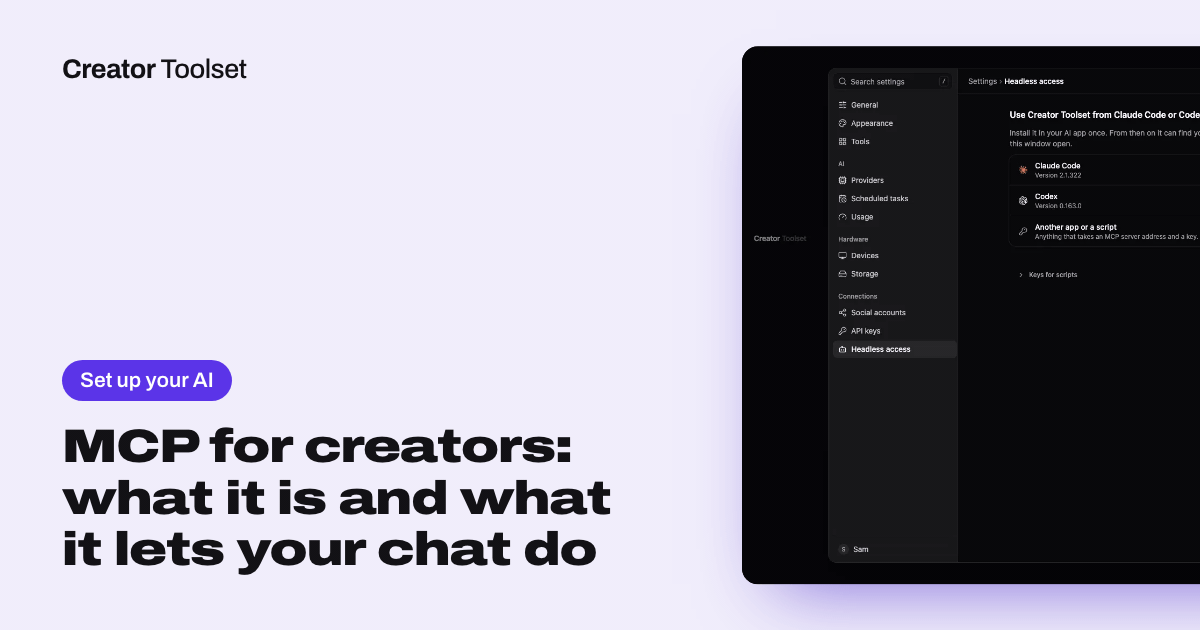 What MCP means for creators
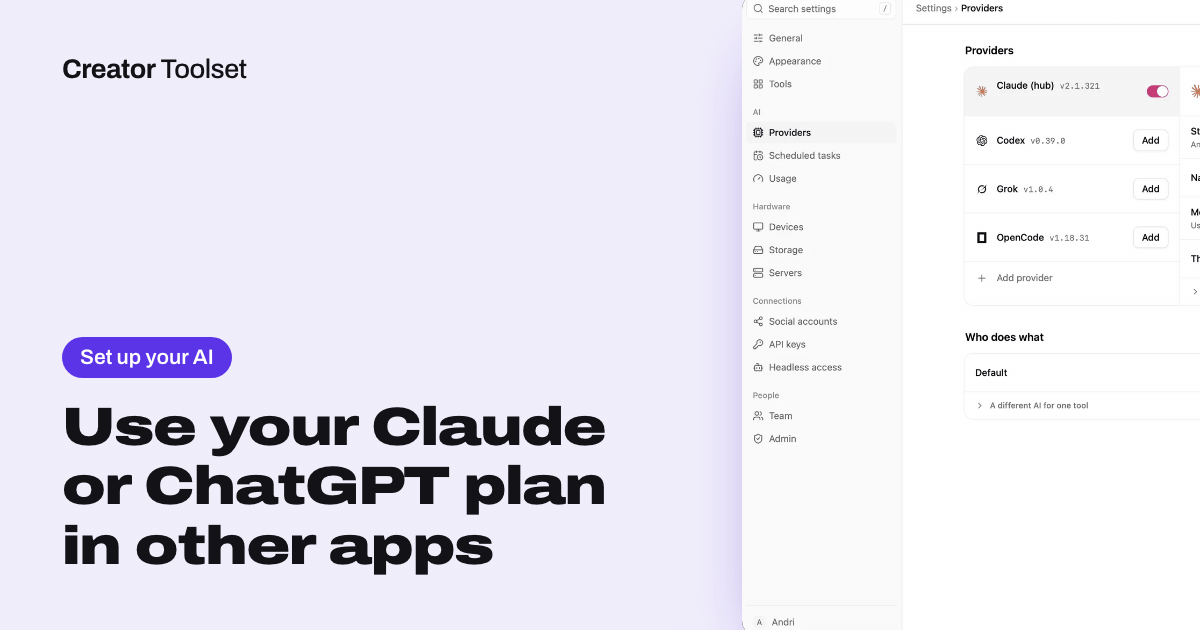 Use your AI plan in other apps
 Scheduled tasks for your AI