Claude Code for non-coders: install it and make a first video cut
By Andri Peetso, maker of Creator Toolset · Updated
You have a forty-minute talking-head recording. Somewhere in it are long pauses, two false starts and a cough. You have read that Claude Code can help with that, but the first page you open says to start in a terminal, and you have never opened one.
This guide gets you from nothing to a first job. You install Claude Code, add ffmpeg (a free command-line tool that reads and cuts audio and video), and ask Claude Code to list the long pauses in a copy of your video. Claude Code does not watch your footage. It runs the commands you approve, reads what they print, and writes the result to a file.
What you need first
- A Mac running macOS 13 or newer. Claude Code's setup page lists macOS 13.0 as the minimum.
- A Pro, Max, Ultra, Team, Enterprise or Console account. The free plan does not include Claude Code, per the setup page.
- Terminal, the app that comes with macOS. Open it from Applications → Utilities → Terminal, or press Command-Space, type Terminal and press Return.
Install Claude Code
-
In Terminal, paste the install command and press Return:
curl -fsSL https://claude.ai/install.sh | bashThe command prints nothing while it downloads. Wait for the prompt to come back.
-
Type
claude --versionand press Return. A version number followed by "(Claude Code)" means the install worked. -
If you see "command not found", close the Terminal window, open a new one and try again. Anthropic's install page has the fix for the PATH case.
Anthropic also lists Homebrew as an install route (brew install --cask claude-code), but the command above is the one its quickstart puts first.
Install ffmpeg
The easiest route is Homebrew, which is a package manager for the command line.
-
Install Homebrew with the command on brew.sh. Homebrew's own page says it supports macOS Sequoia 15 and newer. On an older Mac, skip to step 3.
-
Install ffmpeg:
brew install ffmpeg -
On an older Mac, download a static build from evermeet.cx. The ffmpeg download page lists this site as the source of macOS static builds, for 64-bit Macs.
Check it worked with ffmpeg -version. It prints a version and a list of settings.
Make a copy in its own folder
Never let the first job touch your original file.
- In Finder, make a new folder, for example Movies → first-cut-test.
- Hold Option and drag a copy of your video into it, or use Duplicate from the right-click menu.
- Check that the copy plays before you go on.
Start Claude Code in that folder
In Terminal, go to the folder and start the program:
cd ~/Movies/first-cut-test
claude
The first run asks you to sign in. Follow the prompts; a browser window opens for your Anthropic account. When the prompt appears, type your request in plain words:
Using ffmpeg, find each pause in the audio of this video that lasts longer than 1.5 seconds. Write the start and end times in seconds to cut-list.txt. Do not change the video file.
What the permission prompts mean
Before Claude Code runs a command or changes a file, you see a prompt. It shows the command, and it gives you three choices: Yes, which allows this one action; Yes, and don't ask again for that command in this project; and No, which stops it.
Read the command before you choose. For this job you should see ffmpeg with the file name of your copy, and a line that writes cut-list.txt. If you see rm, a command that moves files, sudo, or a download from an address you do not recognize, choose No and ask again in plain words. Keep the default permission mode for this first job. You can change it with Shift+Tab later, but manual approval is the right setting while you learn.
When a command runs, you see its output in the session. If the printed times look wrong, say so in the chat. Claude Code reads the reply and tries another command.
Stop it and undo changes
Press Esc once to interrupt Claude Code while it works. It stops the current response or tool call, keeps the work done so far, and waits for your next instruction. Press Esc twice with an empty prompt to open the rewind menu, which restores code and conversation from an earlier point (interactive mode reference). Your original video is untouched because you worked on the copy.
Check the cut list
ffmpeg's silencedetect filter finds stretches of quiet audio. By default it counts a stretch as silence when the sound stays below −60 dB for 2 seconds. A talking-head room with a fan or a hum may need a higher threshold. Ask for a value such as −40 dB if the list is too short, or −60 dB if it cuts into speech.
When the list is done, open cut-list.txt and play the copy at three of the listed times. Each pause should be quiet, and the words either side should be whole. That is the test that the job worked. If a breath or a clicking mic shows as a pause, change the threshold and run it again.
Connect Creator Toolset to Claude Code
The second route is to let Claude Code work with Creator Toolset. You do this once.
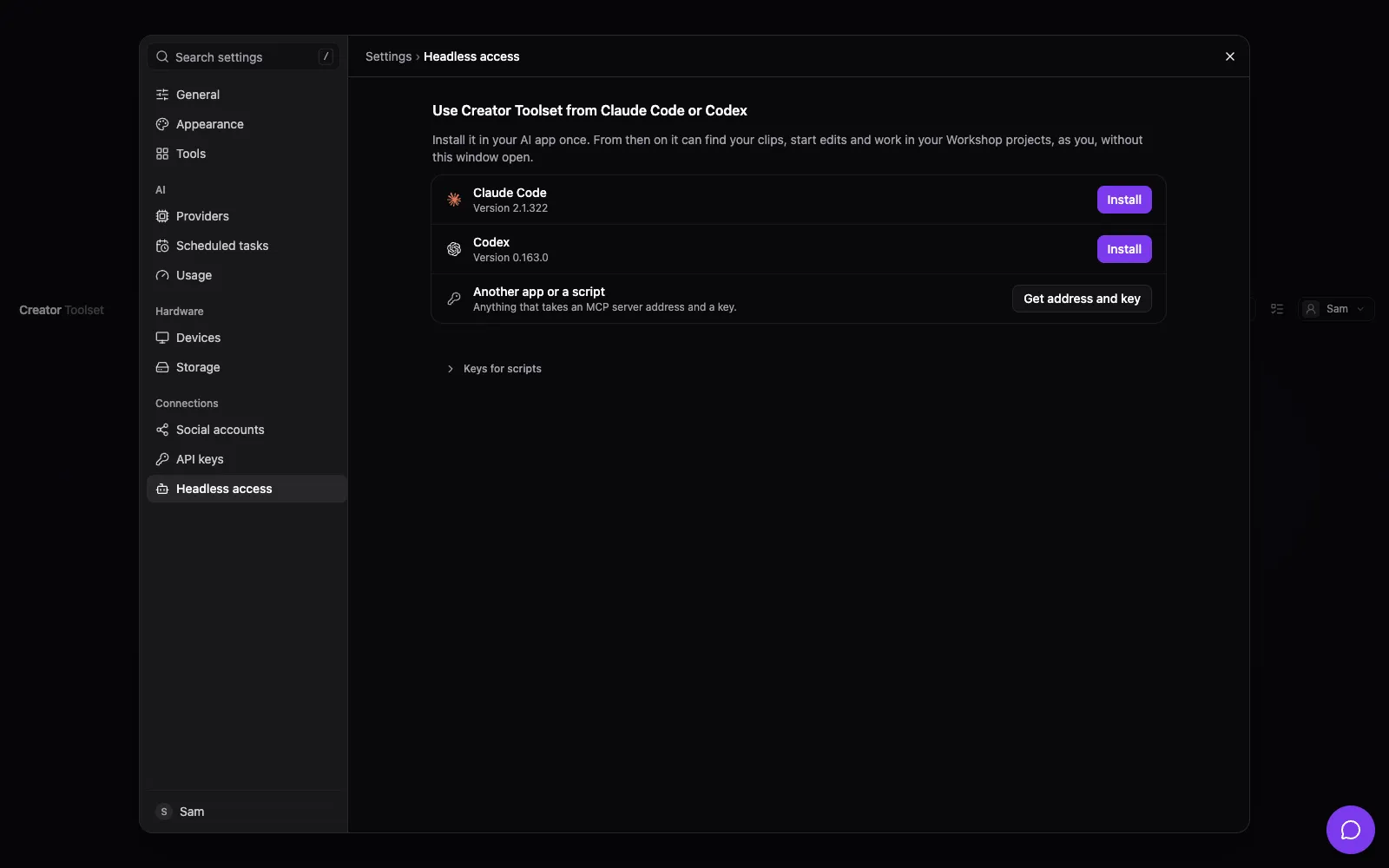
- Open the Creator Toolset Mac app and go to Settings → Headless access. Claude Code is listed when the app finds it on this Mac.
- Click Install beside Claude Code. The app adds Creator Toolset to Claude Code on this computer, with a key that it never shows you.
- Open a new Claude Code window and type
/mcp. A row named creator-toolset should show a tick. A cross means the connection failed, and the row says why.
Once it is connected, Claude Code can use the Creator Toolset tools for your account. Among them are the Workshop's projects, sessions and pieces, which it can read and edit through workshop_edit_piece. It can list your Review videos with list_reviews, read their comments, and mark a comment resolved with resolve_comment once you have made that change. It can also start AI Editor work and manage scheduled tasks.
Start with a read-only request, such as "list my Review videos." The connection key acts as your whole account, so a request that edits or deletes can change real work. Ask for a list first, then approve each change.
To remove it, click Remove beside Claude Code in the same Settings page. That revokes the key. Claude Code keeps the entry, so also run this in Terminal:
claude mcp remove --scope user creator-toolset
What Claude Code cannot do with video
Claude Code does not play your footage or look at it frame by frame. It can run ffmpeg and read the times it prints, which is useful for finding pauses, silence and file details. It cannot tell you whether a laugh landed, whether a frame is blurry, or whether a jump cut looks rough. These checks stay with you, in your own editor, on the playback.
For the editing itself, a tool built for it fits better. The silence guide for DaVinci Resolve shows the same job inside the editor you may already use.
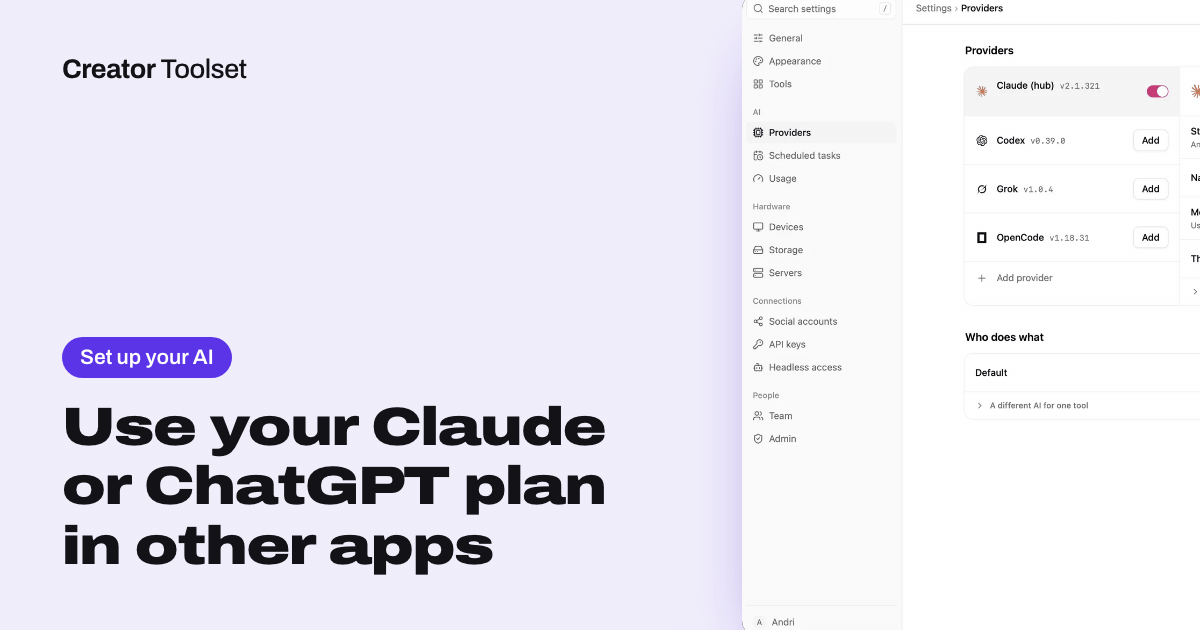 Use your AI plan in other apps
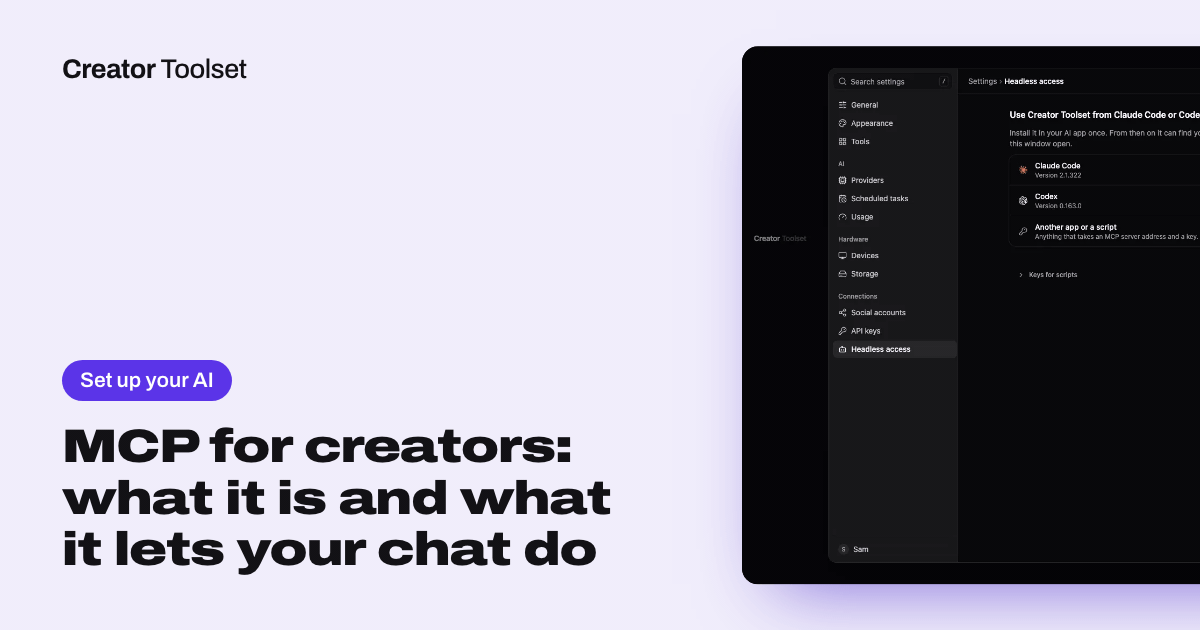 What MCP means for creators
 Cut silences in Resolve