Packs and plug-ins: change what the app knows and does
By Andri Peetso, maker of Creator Toolset · Updated
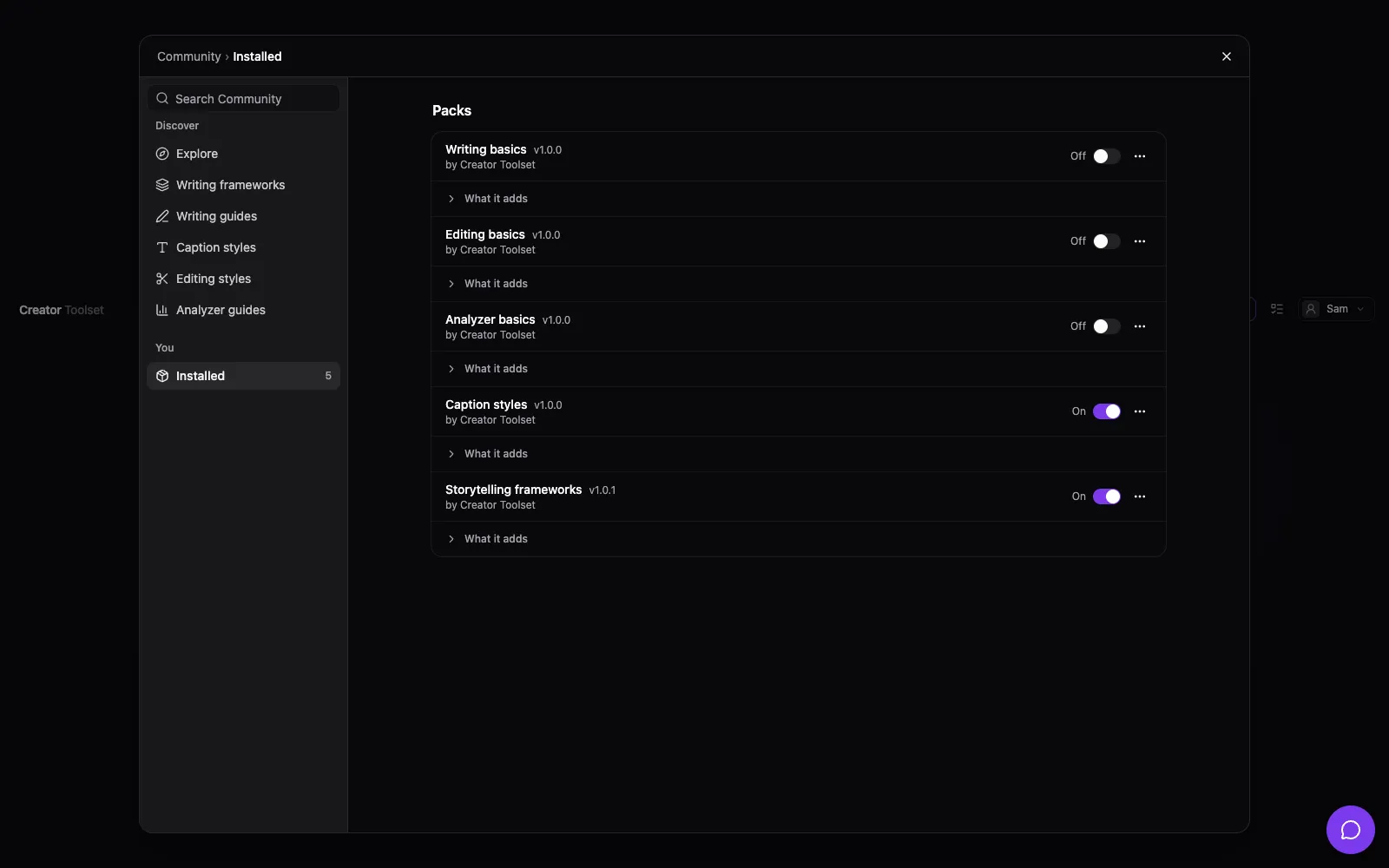
Say you always open a reel on the result, then show how you got there. You can write that rule once, put it in a pack, and let every writing tool in the app follow it, instead of pasting the rule into each new chat.
What it is
Creator Toolset is the free, open-source Mac app from /download. It has two ways to change what it knows and does, and both are found under Community, which you open from the account menu at the top right. A pack is one JSON file. It adds writing frameworks, caption styles and short instructions to the prompts the app's AI already sends, with no code. A plug-in is a folder of your own code, kept beside the app, that can add pages, Home tiles, Settings sections or AI tools.
A pack needs nothing beyond the AI you already connected. A plug-in needs the app run from its source code, which is a bigger job.
Where it came from
Packs are our own idea. Everyone has their own way of writing, and a pack is how a person puts theirs out for free so other people can install it. Plug-ins are ours too. The repository is open, so a person can give it to their own AI and ask for a plug-in that changes the app for the way they work. To have your AI write one, follow asking your AI to build a plug-in.
What you do with it
Switch on a pack
- Open Community from the account menu, then open Explore and pick a pack.
- Press Install. Tick the projects it should reach. If you tick none, it reaches all of them.
- Open Installed, then Packs. Each pack has a switch titled On in and your project's name. Turn it off there to stop that project's AI from using the pack.
- When a newer version is listed, the pack shows Update to and the version number.
The first likely problem is a pack that seems to change nothing. Check the On in switch for the project you are working in, and whether that project was ticked at install. The job is done when the pack is listed under Packs with its switch on.
Run a plug-in from source
- Get the repository and work from its checkout. Plug-ins live in
apps/captions/plugins/<id>/. - Copy the example. The repository's
PLUGINS.mdgives the command,cp -R plugin-examples/hello plugins/sponsors, and says to change every "hello" in the copy. - Run
pnpm devwhile you work, orpnpm buildfor a production server. Both pick up plug-ins. - Open Community, then Installed. The plug-in appears under Plug-ins with the note "Built into this server".
If it does not appear, check the folder name. A name already used by a built-in page, tool or gate is refused at build or server start. If CT_PLUGINS is set, only the names it lists are loaded.
How it works inside
A pack's instructions go into one of six slots: Content Workshop writing and review, Content Analyzer ideas, Caption Studio line breaks, and the AI Editor's script and cards. They are placed after the app's own prompt and before your own rules, labelled with the pack's name. Where they disagree, your rules win. Each slot takes up to 2,000 characters. Install copies only the frameworks and caption styles in the pack, and never overwrites what you edited. An update replaces the copies you have not touched.
The repository ships five official packs in apps/captions/packs/: Writing basics, Editing basics, Analyzer basics, Caption styles and Storytelling frameworks. The code installs all five as defaults (api/lib/packs.ts). The storytelling pack links to your own frameworks of the same names and copies none. Accounts made before 7 November 2026 get these packs installed but switched off.
A plug-in is wired in at build time. scripts/plugins.mjs runs before dev, build, check and test and writes the files that connect each folder. The server side is defined in api/lib/plugin.ts, and the browser side in src/lib/plugin.ts. Each plug-in keeps its data in a folder per account. Its tools join the MCP tool list, and a tool name that a built-in tool already uses is refused unless the plug-in lists it under replaces.
What it needs and where it stops
Packs need no key. Their instructions are used by the AI you already connected, such as Claude or Codex on your Mac. A pack cannot give the AI a tool, a key or a permission, and the checks refuse instruction text that holds links or asks for keys.
Packs in the community catalog are reviewed before they are listed. The publish dialog reads "Sent for review" and says the pack shows in Community once it is listed. Installing a file someone sent you skips that review, and nobody reviews a pack file, so install files only from people you trust.
Plug-ins need more. A plug-in is code with the whole server's access, and PLUGINS.md says to install only from people you trust. The downloaded Mac app runs a server that has no plug-ins, and one cannot be added to it. To run a plug-in, run the server from the checkout and add its address, http://localhost:43127, in the app's Servers list. The app runs on Apple silicon Macs with macOS 14 or later.
If you only want the AI to write differently for one job, a pack is the lighter tool. If you want a new page or a new tool, a plug-in is the right one, and you accept the setup work to get it. For the Workshop side, where the writing and review slots apply, see writing scripts with your own AI.
 Build a plug-in with your AI
 Open source tools by job
 Build a Claude Skill