Make a first cut from your raw takes with the AI Editor
By Andri Peetso, maker of Creator Toolset · Updated
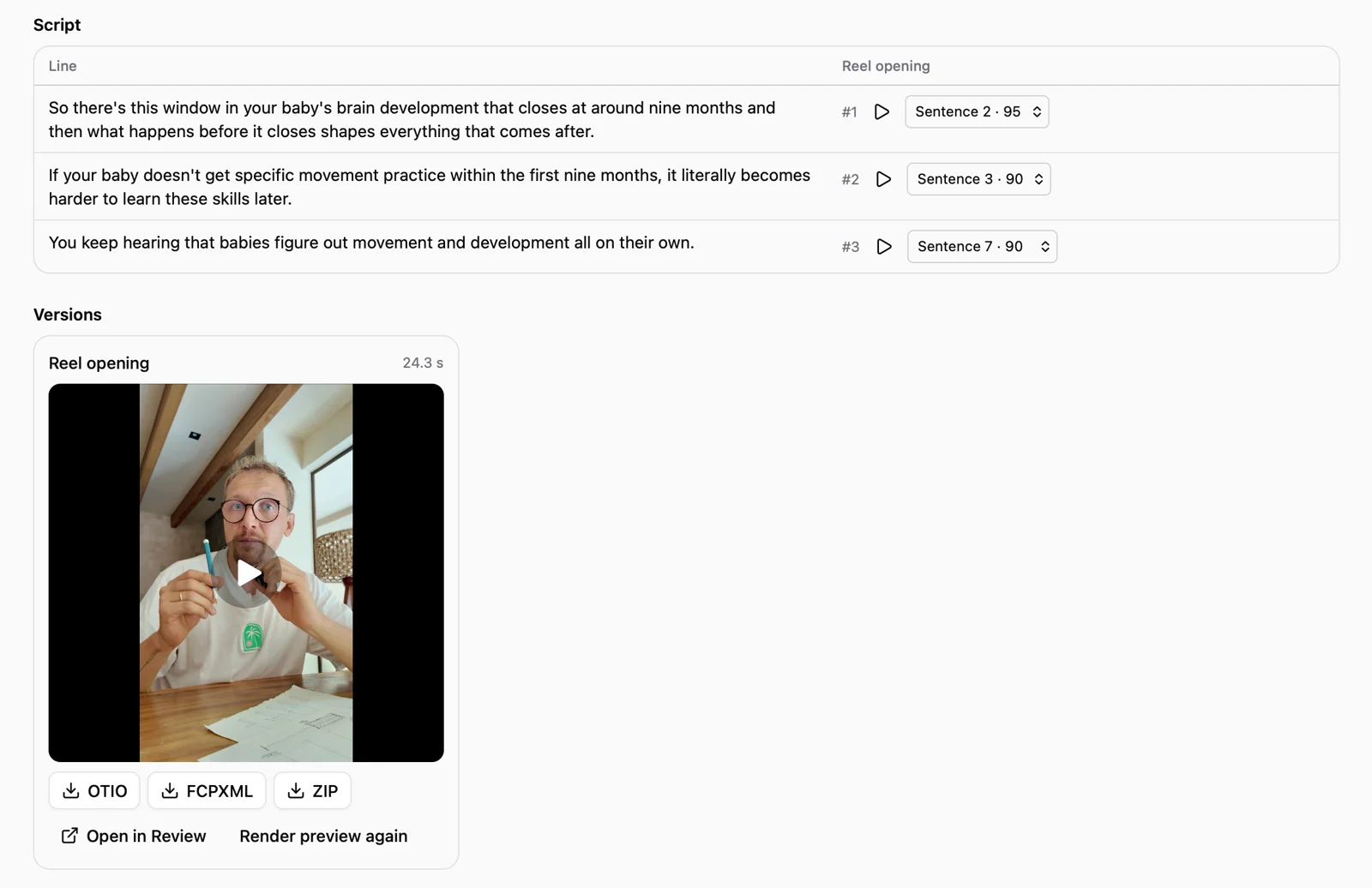
You recorded one talking-head video three times because the first two starts went wrong. Now you have several takes of the same lines and a script. Before you cut anything, you need the good reading of each line and the place where each restart begins.
What it is
The AI Editor takes raw talking-head footage from your Media Library and makes a draft timeline for each version you ask for, with each script line on the speaker track and the restarts and long pauses cut out. It is one tool in the free, open-source Creator Toolset Mac app. You bring the transcripts and the AI: a Deepgram or OpenAI key, or the Mac's own speech model with no key, and Claude Code or Codex on your Mac, signed in with the plan you already pay for.
Where the idea came from
We made it for our own talking-head videos. The job was raw takes in and a draft timeline out, which we then finish by hand in DaVinci Resolve. The AI Editor exists to get that first draft made.
Make a first cut, step by step
- Open AI Editor and press New edit.
- In the footage part, search with Search the library or press Add files from this computer. Click the video cards you want. Press Pick all shown, or Pick the whole folder when a folder is open. The count beside the buttons reads "N picked". You can also drop footage anywhere on the Edits tab, a folder too.
- Name is optional. Under Describe the video (optional), a sentence is enough, for example the hook, the lines in order and the call to action. Add Script (optional) if you have the lines written. Versions takes 1 to 5, and Length (seconds) is optional.
- Press Create and run. The app asks you to confirm, then opens the edit page.
- Watch Steps until each is done. They run in this order: Analyze, Script, Draft, B-roll, Preview, File in Review.
- Open the Script table. Each row is a line of the script and each column is a version. A cell shows the take the app chose. To use another reading, pick it in the take select, or press the play button to hear it first.
- Under Eye line, drag the frame to set where the eyes sit. The zoomed shots use it. It saves when you let go.
- Under Versions, press Open in Review to watch the preview and leave comments. Press OTIO, FCPXML or ZIP to take the draft into your own editor.
The first likely failure is a restart the transcript did not write down, so the cut has nothing to remove (see the run below). The repair is to cut the leftover words in your own editor. The check that the job is done: play every join in the preview with the sound on, then read the cut against the script one line at a time.
A real run on four takes
We ran the AI Editor once on four raw takes from one of our own reels: 2 minutes 12 seconds in all, with three lines read more than ten times in them. No transcription key was set, so the Mac made the transcripts itself. The app picked one take per line, in the order of the brief, and left the abandoned readings out. For the first line it chose the second reading, which is complete, over a first reading that stops one word early. But the on-device transcript had not written two repeated phrases and the start of another attempt, so these stayed inside the lines. We found them by reading the draft against a second transcript that has a time for every word. The cut removes the restarts its transcript shows, which is why every join needs listening to. The full account is in the retakes guide.
How the cut is decided
Analyze splits each transcript into sentences at a pause of 0.7 seconds or at a word that ends in a full stop, question mark or exclamation mark. Fillers and false starts are kept.
Script is the one step that calls an AI. It asks for the lines and, for each line, the takes with a score. A take that scores under 0.5 is used only when a line has nothing better. Each version then gets the best take of each line that no earlier version used, so versions share as little voice as possible.
Cut is plain code. Speech is loudness at or above 0.15 of the file's 90th-percentile loudness. Silences of 0.28 seconds or more are cut, keeping 0.08 seconds after speech and 0.04 seconds before the next word. A take opens 0.08 seconds before its first speech and closes 0.12 seconds after its last. Pieces shorter than 0.48 seconds stay joined to the piece before them. A restart is a phrase of up to eight words said again. Three or more repeated words count on their own. One or two repeated words count only across a pause of 0.1 seconds or where a word was cut off. The last reading is kept. These numbers are starting values, and the code asks for them to be measured on real footage before they change.
Draft lays each take on the speaker track, called V1 in the timeline, with its sound on the voice track. Other shots are punched in: 1.15 times by default, at most 1.5, or 2 from 4K.
Preview is rendered by ffmpeg on the app's own server, with the longest side at most 1920 pixels. Its audio goes through loudnorm at -14 integrated loudness, -1 dB true peak and an 11 LU range. Downloads are OTIO (OpenTimelineIO JSON), FCPXML 1.10, or a ZIP of both.
What it needs and where it stops
Transcripts. Each source needs words. If a Deepgram key or an OpenAI key is set under Settings → API keys, the library uses that key first. If neither is set and the Mac app runs the server, the Mac transcribes the footage itself with a Whisper base model. It downloads about 291 MB the first time and needs no key. A hosted server does not do this, and the step waits with the message "Add your Deepgram (or OpenAI) key in Settings → API keys".
The Script step. It needs an AI: Claude Code or Codex on your Mac, set up under Settings → Providers, or an Anthropic key under Settings → API keys. Without one, the step stops and says what to add. Cut, draft, B-roll and preview need no AI.
Platform and limits. The Mac app runs on Apple silicon with macOS 14 or later. An edit takes up to five versions and 50 sources. A source with no sound is left out, with a note on the draft.
Where it stops. It removes the restarts its transcript shows, and it cannot remove one the transcript leaves out, so listen to every join. We have run it once, on the four takes described above. If you want to decide every cut word by word, a transcript editor is the better fit. For a single short take, a manual cut in your own editor may be quicker than setting up an edit. Cutting silences is a separate check you do yourself.
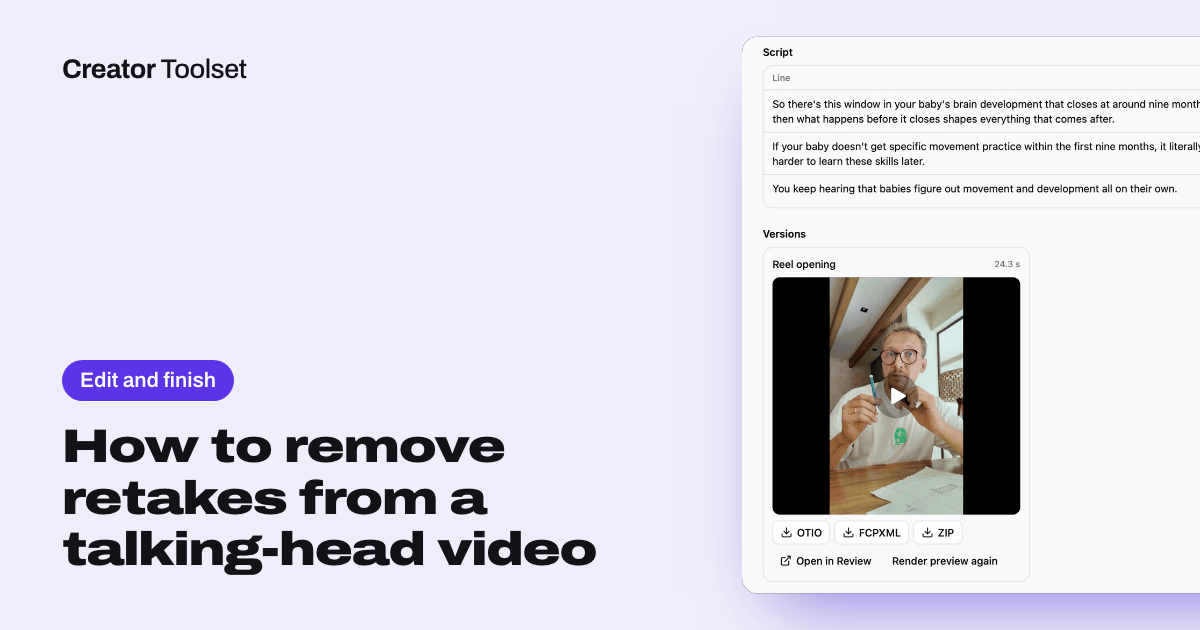 Remove retakes from a take
 Cut silences in Resolve
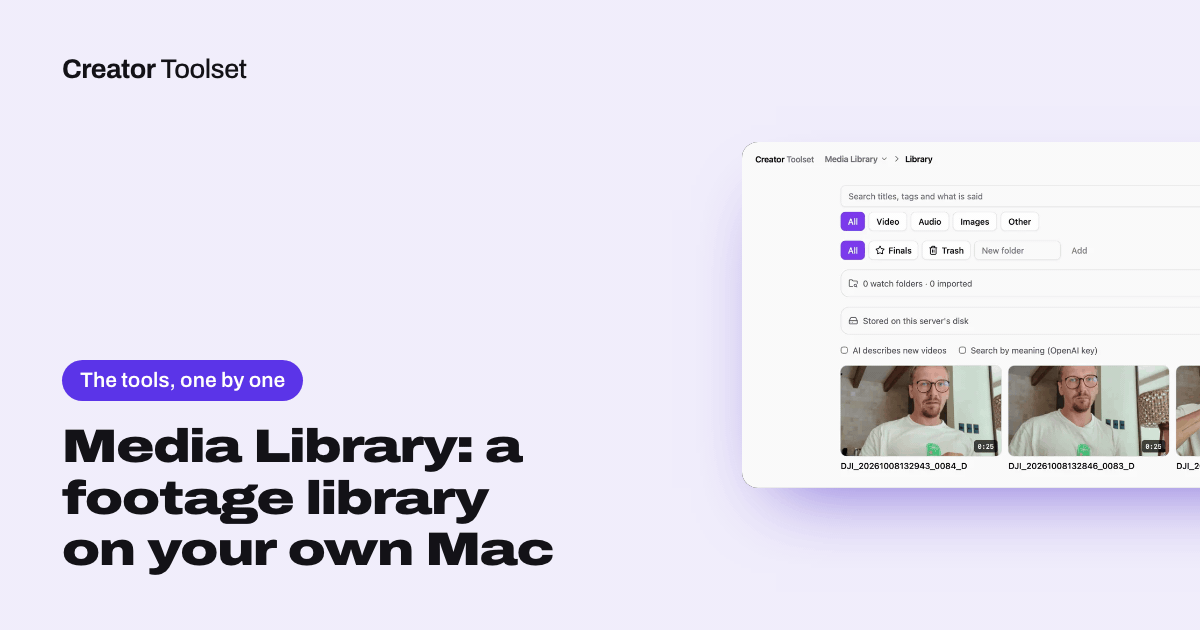 Media Library and Finals