Remove retakes from a talking-head video with AI, and check the cut
By Andri Peetso, maker of Creator Toolset · Updated
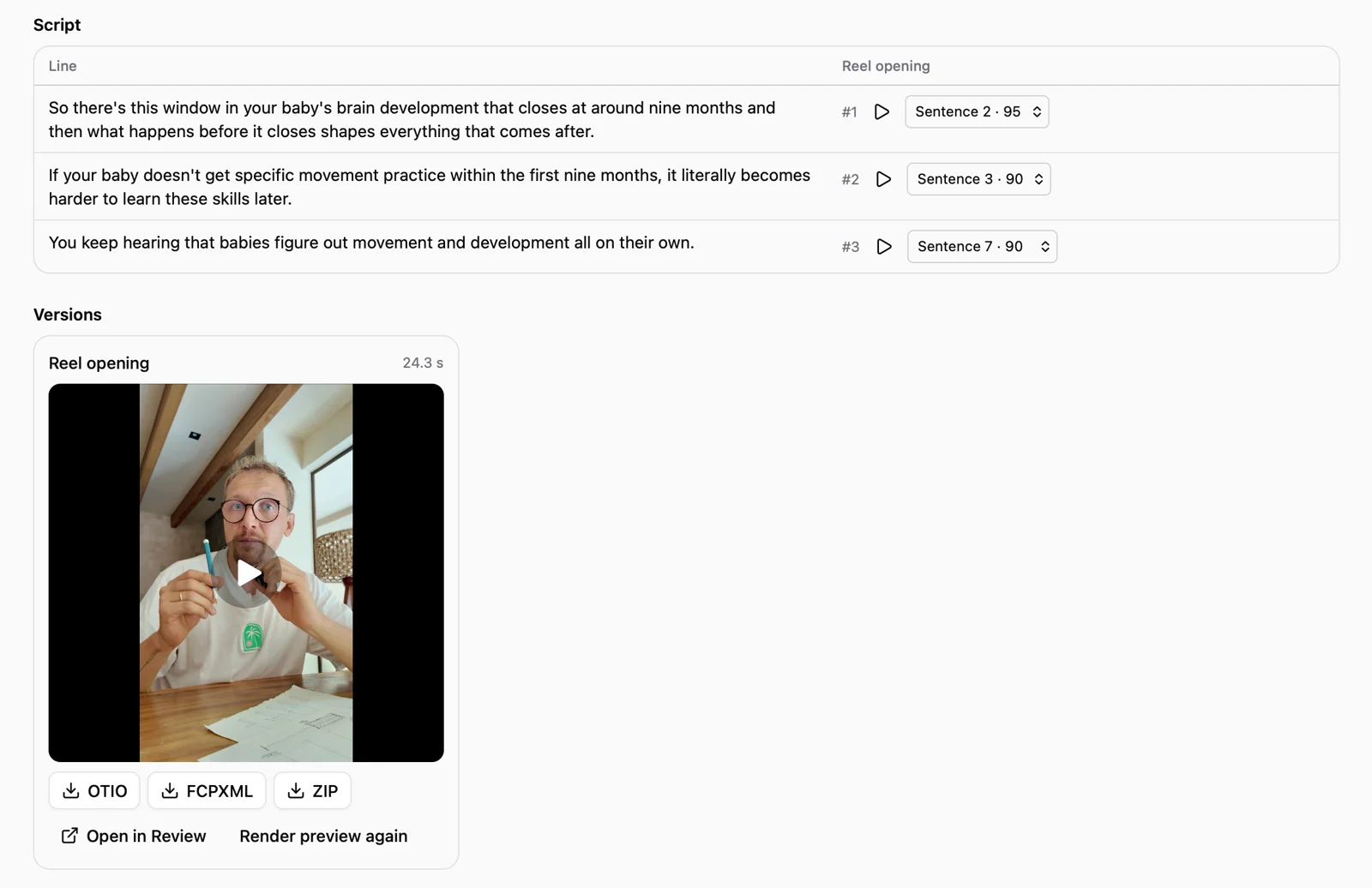
You have a twelve-minute talking-head take. Halfway through the first answer you start again, then start again a second time, and the line you wanted lands on the third try. You want one clean version with the restarts gone and everything else left the way you said it.
Removing retakes automatically means finding each line you said more than once, keeping one attempt of it, usually the last clean one, and cutting the others. Every tool that does this follows the same steps, whether it is an AI, a transcript editor or a person with a transcript open:
- Get a transcript with a time stamp on every word.
- Find where a line starts again. The usual signs are the same words repeated, or a phrase such as "let me start that again" with a pause before it.
- Pick one take of each line.
- Cut the others and close the gaps, so the chosen takes sit one after another.
- Check the new timeline against the script.
The first step decides whether the rest works. If the transcript missed some speech, the tool has no words for that speech, so it cannot see that a take exists. Play a few minutes of the recording next to the transcript before you trust any cut.
Three misses come up often:
- A restart in the middle of a sentence. "So the thing about the, the thing about the schedule is" can be matched on the repeated words. The tool may not know the first half was meant to go, so read every join.
- Two takes that are both good. The tool has to choose one. Pick the delivery you like best. It may be an earlier take.
- A pause that was the beat. A cut can remove the silence before a punchline along with the stumble. Cutting silences is a separate job, and it needs its own check.
Four ways to do it
| Way | What it needs | What it does with restarts | What you get |
|---|---|---|---|
| By hand, with a transcript | Any editor that shows a transcript, or a transcript file | You find each repeat and delete the earlier take | Your own timeline |
| Descript | A Descript account. Its pricing page lists Remove Retakes as limited on the free plan and included on paid plans | Keeps your best takes and cuts the others, per its pricing page | A cut inside Descript |
| DaVinci Resolve AI assistant | DaVinci Resolve Studio 21.1 or later, and an assistant such as Claude or ChatGPT Codex | Does what you ask through Resolve's scripting. Blackmagic's manual does not describe a retake finder, so you name the takes | Edits in your Resolve project |
| Creator Toolset AI Editor | Footage in your Media Library and an AI you have connected | Picks the best take of each line and cuts the restarts its transcript shows | Draft timelines for your own editor, with a preview in Review |
By hand is the slowest, and it is the way to check the others. Put the transcript beside the timeline, search for the first word of a line you suspect is repeated, and delete the earlier attempt. It takes longer than an AI pass, but nothing is cut that you did not see.
Descript is a transcript editor. You delete words in the text and the video follows. Its Remove Retakes feature does the first pass for you. The Descript pricing page describes it as cutting all but your best takes, and it is limited on the free plan.
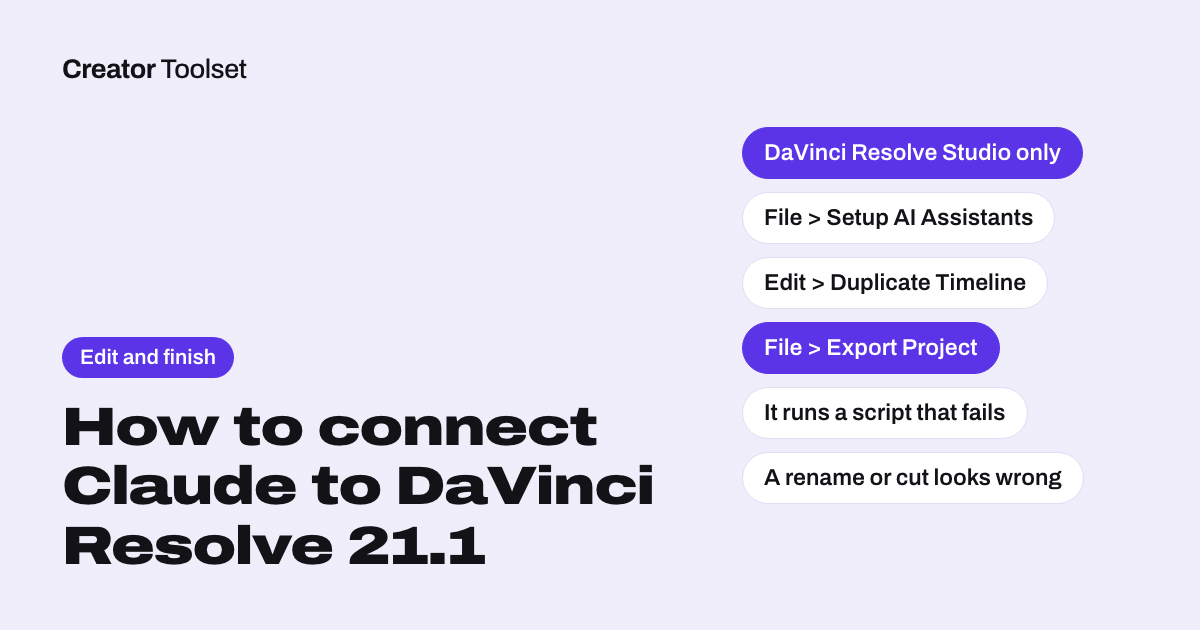
The Resolve assistant is a different kind of help. Blackmagic's DaVinci Resolve 21.1 manual describes an MCP server that lets an assistant organize timelines and run scripts inside Resolve. It is for Studio. The AI assistant setup guide covers how to connect it. It is a good way to make the cuts you have already picked, but you still do the picking.
The Creator Toolset AI Editor does the whole first pass. You pick the footage in the Media Library and say what the video is. The AI groups the sentences of the transcript into lines and scores each take of each line. The cut step then trims each take to its words and tightens long silences by loudness. Where the transcript shows a restart, such as "so this is, so this is for", it keeps the last reading. Each version comes out as an OpenTimelineIO file, an FCPXML 1.10 file, or a ZIP with both and a list of the media to download. A preview is rendered on the server and filed in Review, where you open it and leave comments. The app is free and open source. You bring your own AI: Claude Code or Codex on your Mac, signed in with the plan you already pay for and set up under Settings → Providers. The Mac app is on the download page.
The AI Editor makes a draft, and you finish it in your own editor. If you have not picked one yet, the 2026 roundup of video editors compares them. If the transcript missed a line, the editor has no take to pick, so check the transcript against the recording first, as above.
A real run: four takes, three lines
We ran the AI Editor on four raw takes from one of our own reels. Together they are 2 minutes 12 seconds long, and in them three lines are read more than ten times. No transcription key was set, so the app made the transcripts on the Mac itself when the takes went into the Media Library. The AI was Claude, connected under Settings → Providers.
-
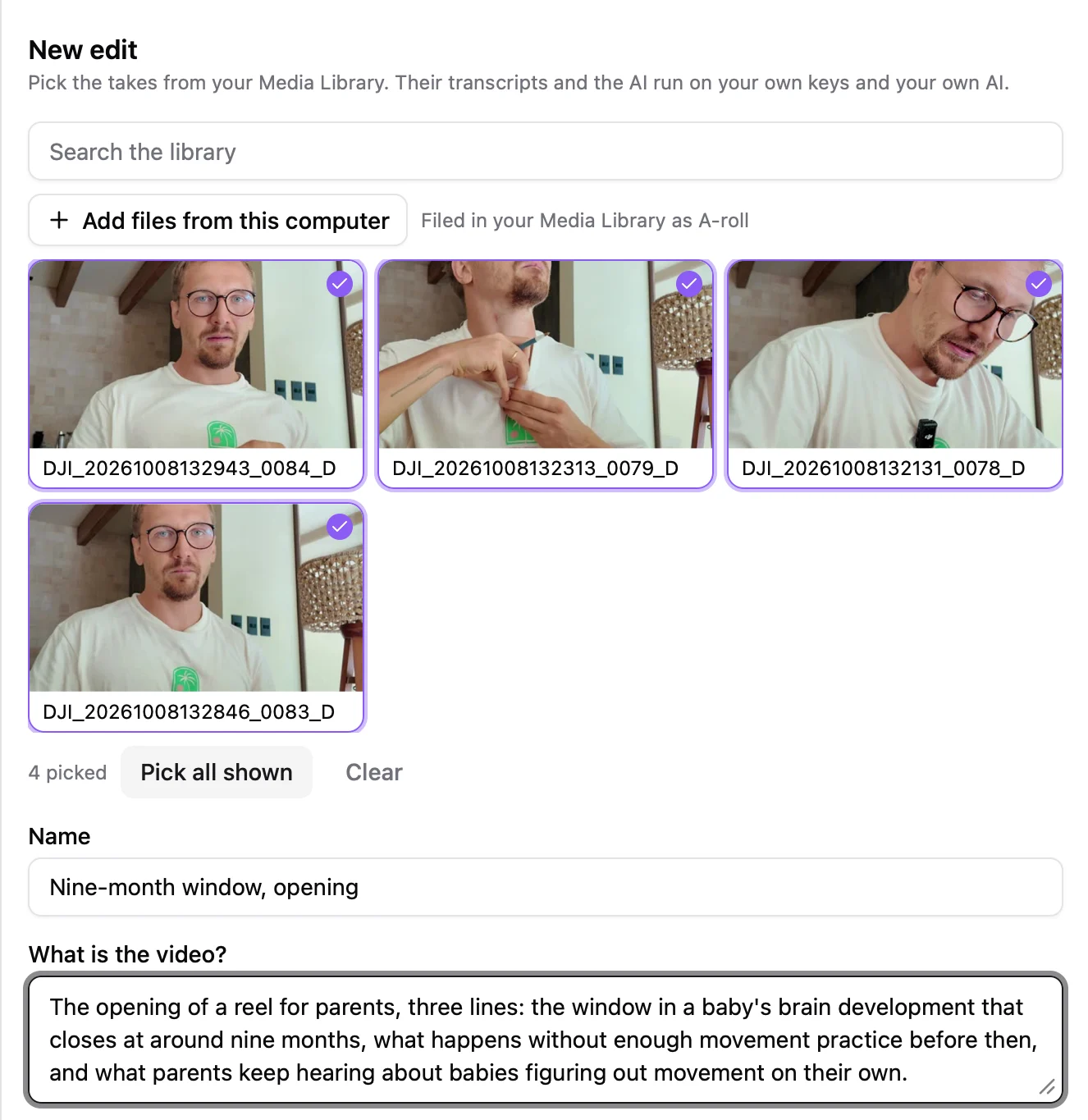
Pick the takes and say what the video is. In New edit we picked the four takes, gave the edit a name and described the three lines in one sentence.
-
Press Create and run. The page lists each step as it finishes: Analyze, Script, Draft, B-roll, Preview, File in Review. Here the preview was in Review about half a minute later.
-
Read the script table. Each line of the video is a row with the take the AI picked and its score. The picture at the top of this page is this run. For the first line it took the second reading, which is complete, over a first reading that stops one word early. The draft is 24.3 seconds long.
-
Open the preview in Review and listen to it.
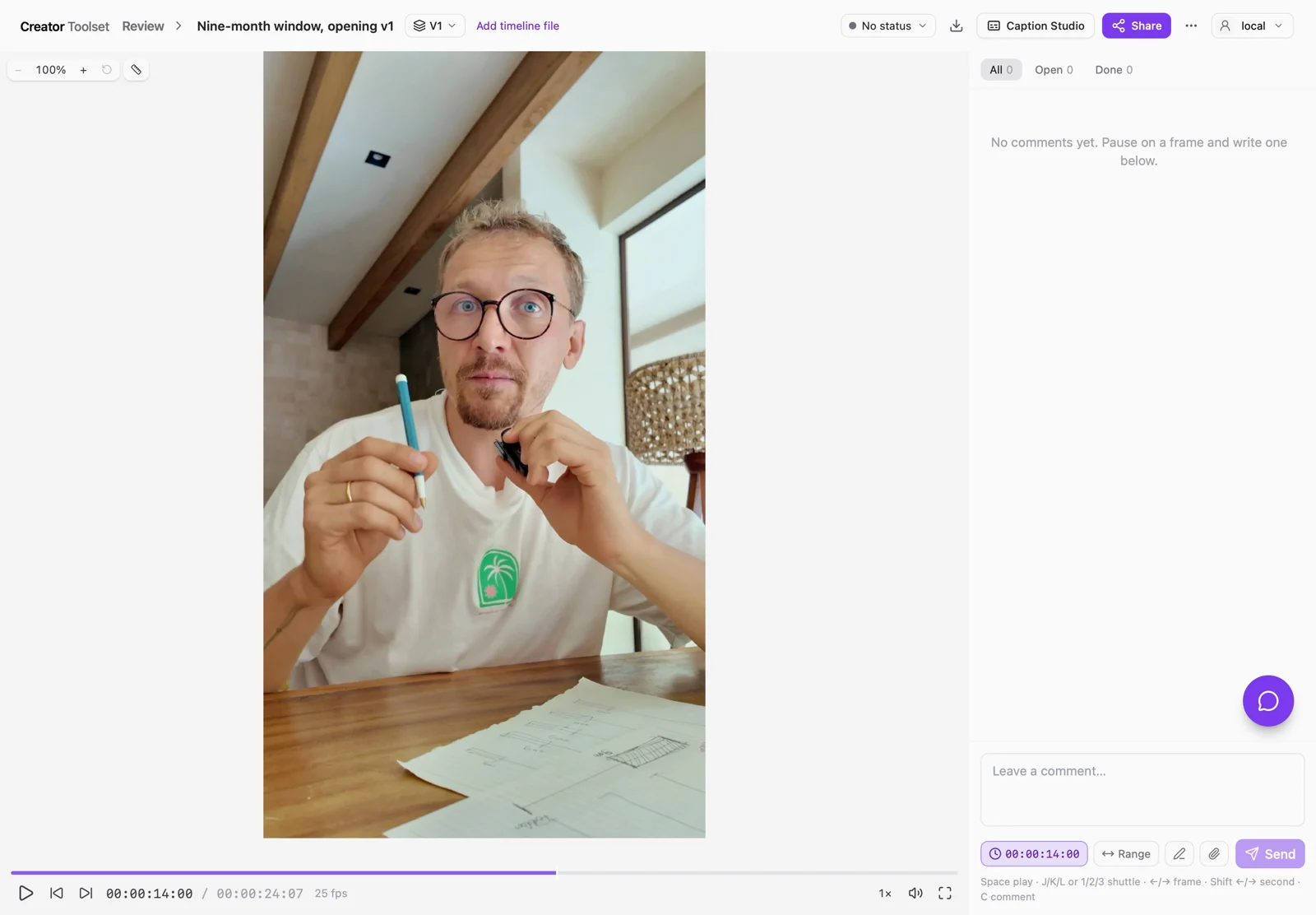
It got the big things right: one take per line, in the order the brief gave them, with the abandoned readings left out.
It left three things in. In the second line the take says "it literally becomes harder" twice. The third line opens with "You keep hearing that" twice. And the first words of the next attempt, "If your baby doesn't get it", follow the second line. We found them by reading the draft against a second transcript that has a time for every word. The on-device transcript had written both sentences without the repeated words, so the editor had nothing to cut. That is the first miss on the list above, and it is why the next section is part of the job.
The app can also use a Deepgram or OpenAI key for transcripts, set under Settings → API keys. We have not run the same takes with one.
Check the cut before you export it
Read the cut against the script, one line at a time. Look for three things: a line that is missing, a line that is there twice, and a line that now ends one word early because the last take was cut short.
Then listen to every join with the sound on and headphones if you have them. A join that sounds fine at speed can clip a breath or start a word late. Most of the time the fix is a few frames of padding. Add a little space before the first word or after the last, then listen again.
When every line is in once, in the order of your script, and every join is clean, the cut is done.
 Cut silences in Resolve
 Set up the Resolve AI assistant
 Browser Whisper captions and SRT