Keep your footage on your Mac and find any clip by what is said
By Andri Peetso, maker of Creator Toolset · Updated
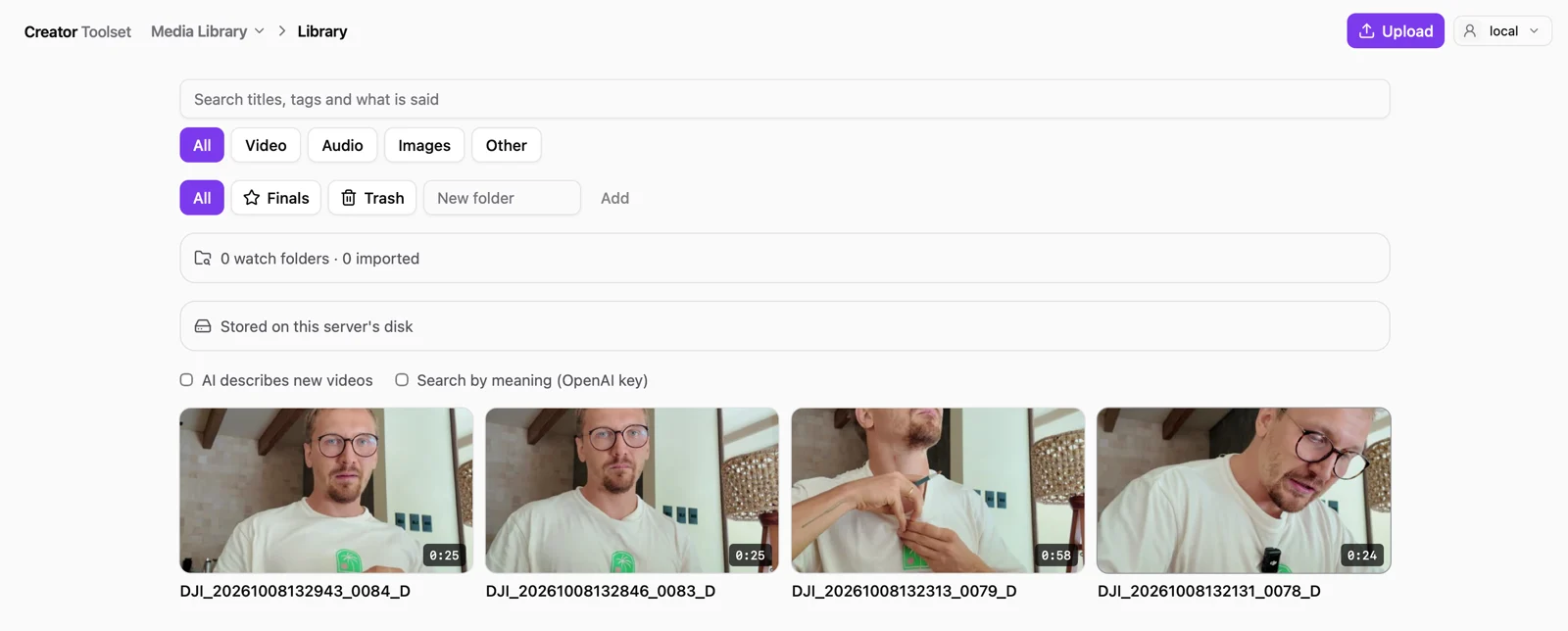
A card comes out of the camera after a shoot with forty files on it, and none of the names say what happens in them. The take you need is somewhere in the pile, and you remember roughly what was said.
The Media Library keeps these files on your Mac and searches their titles, tags and the words spoken in each clip. Finals sits on top of it and holds the finished pieces you post, each with one chosen winner. Both are part of the free, open-source Creator Toolset Mac app, which you can get here. Uploading, watch folders, folders, word search, trash, share links and Finals need nothing else. AI descriptions and search by meaning need an AI or a key you add.
Where Finals came from
Finals is our own idea: a curated set, where you choose what goes in and nothing is added automatically.
Add footage to the library
- Open Media Library from the home screen. If there is no library yet, click Create library, and the app makes one named "Library".
- To add files by hand, click Upload in the top bar and pick the files. They upload one after another. The Uploads panel marks each one Added, Already in library or Failed. Click Retry on a failed file.
- To have a folder fill the library, open Watch folders and type the folder path. Choose a Mode: Leave files where they are keeps each file in its folder and the library reads it there, and Copy into the library stores a copy. Pick an Into folder if you want one, then click Watch.
You know it worked when the file appears in the library with a thumbnail. The first likely failure is a watched file that never shows up. The app scans each watched folder every 30 seconds and imports a file only after its size and modified time have stayed the same for 60 seconds, so a file that is still copying waits. Allow up to a minute and a half.
Find a clip by title, tag or spoken word
Type into the search box, which reads Search titles, tags and what is said. Matches on title, tags and description come first, then the lines said in clips, each with the second it starts at. The kind buttons All, Video, Audio, Images and Other narrow the list. Click Save search as folder to keep a search that reruns itself.
Search by meaning finds clips when the words differ. Turn on Search by meaning (OpenAI key); it is off by default and needs an OpenAI key. After you edit a description, meaning search does not use the new text until that clip's describe and embed jobs run again.
Make a Finals piece
- Open Finals from the home screen, or click the Finals folder in Media Library. A piece is a row in the library's Finals collection.
- Open a piece, choose a file in Add a version from the library, and click Add to piece.
- Click Make winner on the version you want. A new winner clears the old one. Use Move up and Move down to order the versions, and Make its own piece to split one out.
- Under the cover, click Use this frame as cover or Use this picture as cover. Back to the automatic cover undoes it.
- For each posting, pick a Platform (Instagram, Facebook, YouTube, TikTok or X), paste the Post link and click Add posting. Finals keeps the link as text only. It does not post for you, and it does not fetch the post's numbers.
- Save all as ZIP downloads the piece's versions.
The Finals grid shows "Posted" or "Not posted yet" on each tile. A video whose shorter side is under 1080 pixels is refused with "This video is W×H, below 1080p: not sent." The repair is to use the full-size file, not a smaller copy.
To remove a piece, click Move to trash. Its versions stay in the library. The piece itself is deleted for good after 5 days, while library trash keeps files 14 days by default.
How it works inside
Each uploaded file is hashed with SHA-256 when its upload finishes. If the library already holds the same bytes, the new file is linked to the stored copy and marked "Already in library", so nothing is stored twice. Uploads travel in 32 MB chunks and resume from the last chunk the server received. On the Mac app, a library's database is library.db and its files are kept as blobs, both in ~/Library/Application Support/Creator Toolset/data/library.
A worker runs one job at a time: probe first, then thumbnails and waveforms, then transcription, and then a description and embedding if you turned these on. Transcription tries a Deepgram key first, then an OpenAI-compatible key. On the Mac app only, it falls back to the Whisper base model running on your Mac through Hugging Face's Transformers.js. That model is about 291 MB and downloads the first time. With no key and no on-device model, the job waits as "needs key".
Word search uses SQLite full-text search (FTS5). When search by meaning is on, it also compares the query with about 30-second windows of transcript, using the text-embedding-3-small model unless you set another one. The two result lists are merged by reciprocal rank fusion with k = 60.
What it needs and where it stops
- Nothing extra: upload, watch folders, folders, word search, trash, share links and Finals.
- Transcripts: a Deepgram key or an OpenAI-compatible key, or the on-device model on the Mac app.
- Search by meaning: an OpenAI key.
- AI descriptions: your own AI. Each description sends four frames, the title and a transcript excerpt. It is off by default.
- Platform: a Mac with Apple silicon and macOS 14 or newer.
- Caps: 8 GB per uploaded file. The server keeps 20 GB of disk free before it accepts an upload. Up to 20 watch folders per library.
Share links sit under Link scope, with Watch only or Watch and download, then Days to live (1 to 90, default 7) and an optional Password (optional). Click Create link, then Copy. The link is shown once, and the app stores only a hash of its token. The Mac app's server listens on that Mac only, so a link from it opens only there. To send a link to a client, run the server where they can reach it, as SELF_HOSTING.md in the repository describes.
Media Library keeps and finds footage. It is not a review tool. For timed comments on a video, Review fits the job better. To pick raw takes for a first cut, see the AI Editor article.
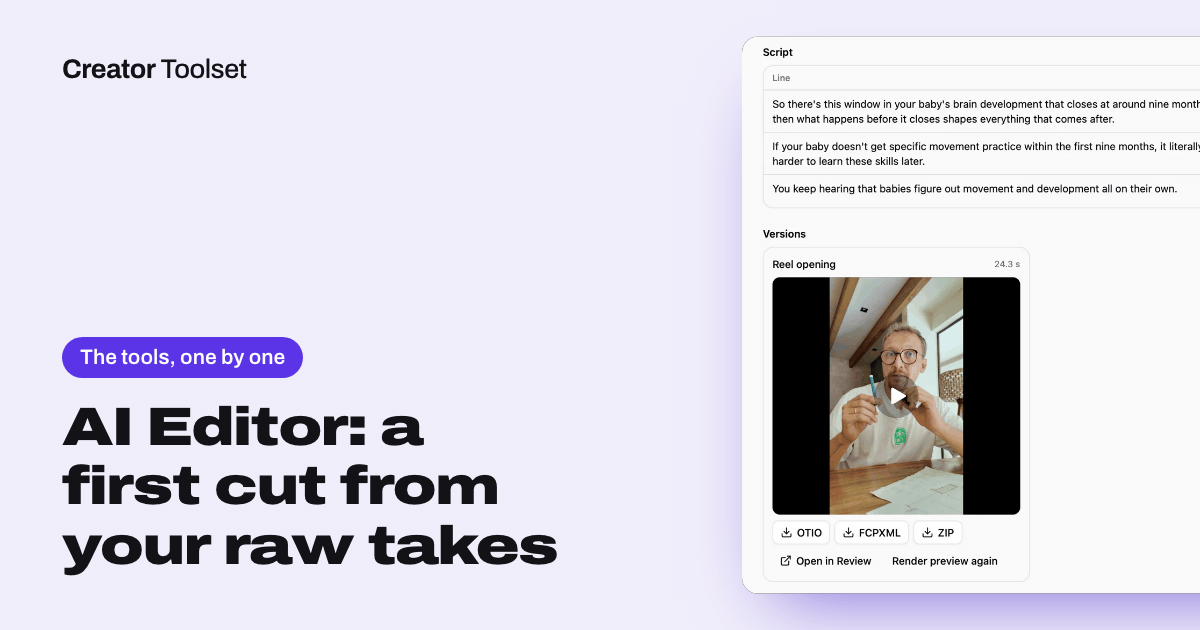 AI Editor first cut
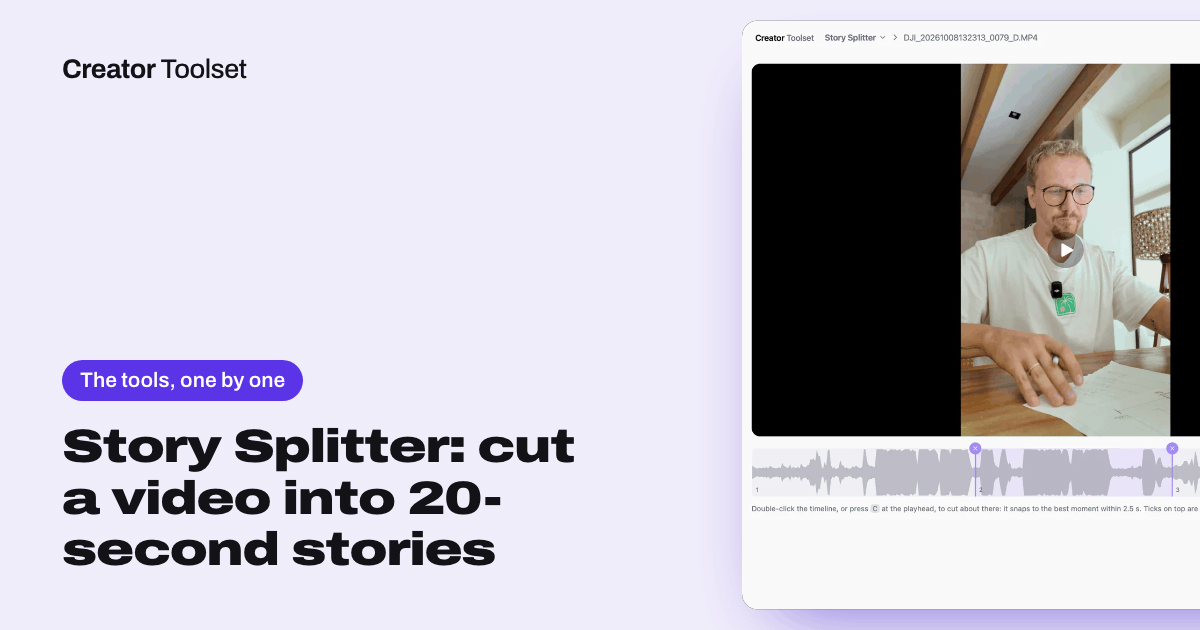 Story Splitter: 20-second stories
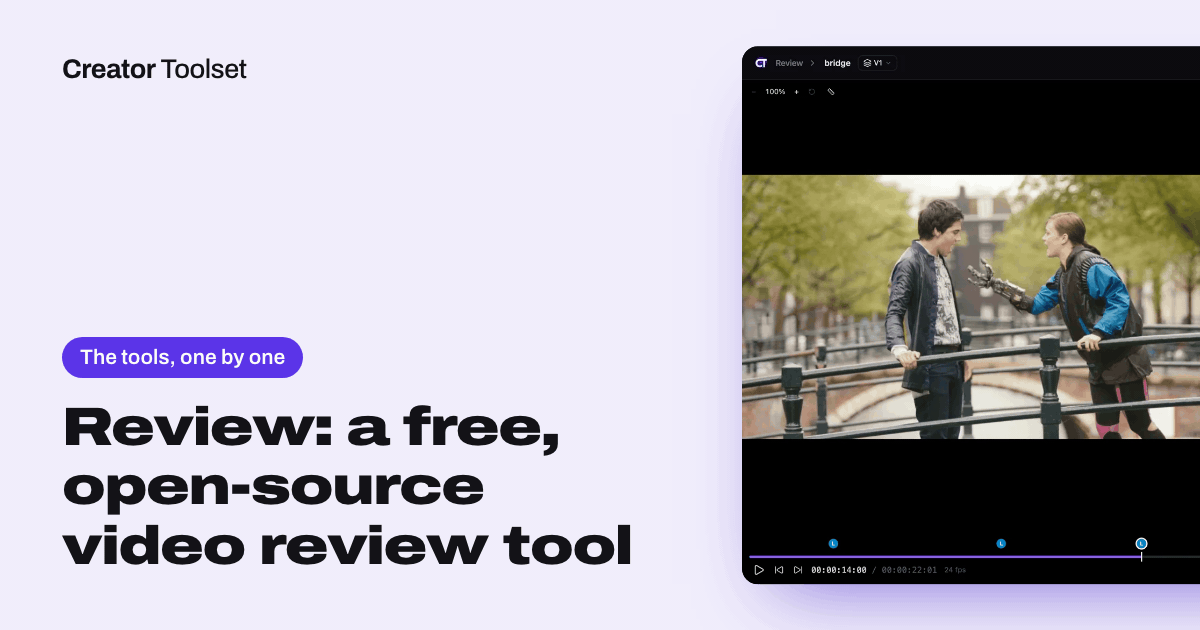 Review tool