Best AI tools for editing Reels in 2026
By Andri Peetso, maker of Creator Toolset · Updated
You film a fifty-second talking clip on your phone. It has a pause before every sentence and a restart at second twelve. You want it under forty seconds, with captions that follow each word, and you want it posted today.
A Reel is five jobs in a row: cut the talking clip tight, caption it, clip it out of a longer recording if you need to, add B-roll or a template, and export it. No single app does all five well at the same price. Pick one tool for each job you have.
The short answer
- If you want to cut a talking clip tight and you shoot on a phone, pick Edits or InShot, then check the cut against the transcript in Descript.
- If you want captions that follow each word, pick Caption Studio in Creator Toolset, or Captions on iOS.
- If you have one long recording and need several Reels from it, pick OpusClip, Klap or Vizard.
- If you want B-roll and templates in one app, pick CapCut or VN.
- If you finish on the phone and want a free app with no watermark, pick Edits or VN.
We make Creator Toolset, and it is on this list where it fits. Each pick below says who should choose something else.
Comparison
Prices were read on each vendor's page on 10 November 2026. Where a page does not state a platform or a price, the cell says so, and the link under each tool is where to check.
| Tool | Best for | Platforms | Free tier | Price from |
|---|---|---|---|---|
| CapCut | Templates, auto captions, general editing | Windows and macOS desktop, plus mobile | Basic editing and templates | $17.99 a month, or $149.99 a year (Pro) |
| Edits | Phone edits and captions, from Instagram | iOS, Android, Mac (Apple silicon) | Free, exports with no watermark | Free |
| InShot | Phone edits with auto captions and AI cut | iOS, Android, Huawei | Not stated on vendor page | Not stated on vendor page |
| VN | Phone and Mac edits with templates | iOS, Android, Mac, Windows | No watermarks, 150+ templates | Not stated on vendor page |
| Captions | Captions and translation | iOS plans | One caption template | $24.99 a month billed monthly |
| Submagic | Captions and short clips | See vendor page | No free plan listed | $19 a month billed monthly, or $12 billed yearly |
| OpusClip | Clipping a long video | See vendor page | One clip a day | $15 a month (billing period not labelled) |
| Klap | Clipping a long video | See vendor page | One video trial | $14.50 a month billed yearly (Basic) |
| Descript | Cutting by editing the transcript | Not stated on vendor page | 60 minutes a month, 720p, watermark | Hobbyist $24 a month billed monthly, or $16 billed annually |
| Creator Toolset | First pass, karaoke captions as an overlay, Story Splitter | Mac, Apple silicon, macOS 14 or newer | Free and open source | Free. You pay your own AI plan. |
Cutting a talking clip tight
Edits is Instagram's own app for video, on iOS and Android, and on Mac with Apple silicon. It is free, and the desktop page says its exports have no watermark. Its listed features are auto captions and auto-enhance. Its page names no silence or restart tool, so use Edits to finish a cut you made elsewhere. Pick it for the clip you shoot and post on the same day. See edits.instagram.com.
InShot is a mobile editor on iOS, Android and Huawei. Its listed features include auto captions, AI Cut and voice enhancement. Pick it if you want the whole edit on one phone. Its free tier and paid plan are not stated on its page, so check the watermark in a test export. See inshotapp.com.
Descript cuts a clip by changing its transcript. Its pricing page lists Remove Filler Words and Shorten Word Gaps, which is the closest match on that page to silence removal. The free plan gives 60 minutes of media a month, 720p and a watermark. Pick it when you think in text and want to see every cut as a line of words. Hobbyist is $24 a month billed monthly, or $16 billed annually. Creator is $35 a month billed monthly, or $24 billed annually. See descript.com/pricing.
Creator Toolset AI Editor makes the first pass from raw takes. You pick them from the Media Library and say what the video is, and the AI picks the best take of each line and cuts the pauses and the restarts its transcript shows. It makes a draft timeline for your editor, in OpenTimelineIO or FCPXML, with a preview in Review. It runs on the Mac app with your own Claude Code or Codex, signed in with your own plan (set up under Settings → Providers). Pick it when you shoot a retake-heavy take on a camera and want the cut made before you finish it. It is a Mac app, and its output is a draft. The process is in remove retakes from a talking-head video.
Captions that follow each word
Caption Studio in Creator Toolset transcribes the clip in your browser with Whisper unless you add a cloud transcription key, so no transcription service gets the video, and it needs no AI plan. Each transcript line becomes a caption you can edit, and the Animation setting includes Karaoke word highlight, which lights each word as it is spoken. The export is a transparent overlay: MOV in ProRes 4444, WebM in VP9, or a PNG sequence, plus SRT, WebVTT and ASS files. Pick it when you edit in one app and need the captions as a layer on top. The steps are in local Whisper captions and the transparent caption overlay.
Captions is an iOS app with AI captions, subtitles and translation. The free plan gives one caption template and no AI credits, and the paid plans start at $24.99 a month billed monthly. Pick it if you shoot and caption on an iPhone. Its pricing covers iOS plans only. See captions.ai/pricing.
Submagic does captions, AI hook titles and Magic Clips. Starter is $19 a month billed monthly, or $12 billed yearly, and its videos can run up to two minutes. Pick it if the captions are the whole job and you want a fixed style. There is no free plan. See submagic.co/pricing.
CapCut adds auto captions in its desktop editor, and its mobile app is a separate product. Pick it if you want captions and templates in one editor. Check the desktop page's free-plan watermark and export limits before you rely on the free version. See capcut.com/tools/desktop-video-editor.
Clipping a long video into Reels
Use these when one recording has several clips in it.
OpusClip does AI clipping with caption templates, and AI image and stock B-roll. The free plan posts one clip a day, with watermarked caption templates. Pick it for a steady flow from a weekly recording. Clip media expires after three days on the free plan. See opus.pro/pricing.
Klap clips a long video into vertical clips on every plan. The free plan is one video, and downloading or posting needs a paid plan. Basic is $14.50 a month billed yearly, with 100 clips a month. Pick it for a high clip count. See klap.app/pricing.
Vizard turns long video into clips with credits, and schedules the posts. Its free plan gives 60 credits a month. Its prices are not stated as amounts on its pricing page, so check vizard.ai/pricing before you commit.
Story Splitter in Creator Toolset cuts one video into stories of about 20 seconds, with the length set by a slider from 8 to 45 seconds. It finds the cuts from the edit's hard cuts, the pauses and a steady beat in the audio, then downloads the stories as one zip. It runs in the browser, so nothing is uploaded. It finds cuts from frame changes and loudness, so a pause that carries a joke can be cut. Check each split before you post.
B-roll and templates
CapCut has free templates to start a Reel and basic editing tools. Its desktop page also lists smart search and an AI writer. Pick it when the Reel needs a template and you want one app for it.
VN is a free editor with 150+ templates, no watermarks, AI image and video generators, and background removal. Pick it on a phone when you need a template and a cutout in the same app. Its paid tier and export resolution are not stated on its page, so check them on vlognow.me before you pay.
Creator Toolset adds no B-roll. It makes the cut from footage you already have. If your Reel needs a shot you did not film, use one of the apps above and bring the result back to Caption Studio for the captions.
Finishing on the phone
Most Reels end on a phone, so pick an app that exports to the phone's library. Edits, InShot and VN all run on iOS and Android. Creator Toolset runs on a Mac, so cut and caption on the Mac, then move the finished file to your phone.
Check the export before you post. Open the exported file on the phone and look at the last second for a watermark. If a watermark is there, it came from the free tier of that app, and the fix is either the paid plan or an app whose free tier has none. Edits and VN state no watermark on their free tiers.
What no tool does yet
No vendor page says its tool watches every frame, or knows which pause is part of the joke. A pause that sets up a punchline looks, to a silence cutter, like dead air. Play the Reel with sound on before you post it, and keep the pauses that do the work. For the script side of a Reel, see writing scripts in your own voice, and for how to tell a finished Reel from generated filler, see what is AI slop.
How we chose
The picks come from what each vendor publishes (features, limits, price and platforms) and from what each tool is built to do. We did not test these tools side by side, so this list makes no claim about which is faster or more accurate.
Try two apps on the same clip
- Choose one clip of about fifty seconds, with a restart and two pauses in it.
- Run it through two candidates, one for the cut and one for the captions, using the free tier of each.
- Export both, then play each export on your phone with sound on. Check that the cut kept the best take, that the captions line up with the speech, and that no watermark appears on the last second.
- If the export is watermarked, judge the cut from the export anyway, then decide whether a paid plan is worth it for this Reel.
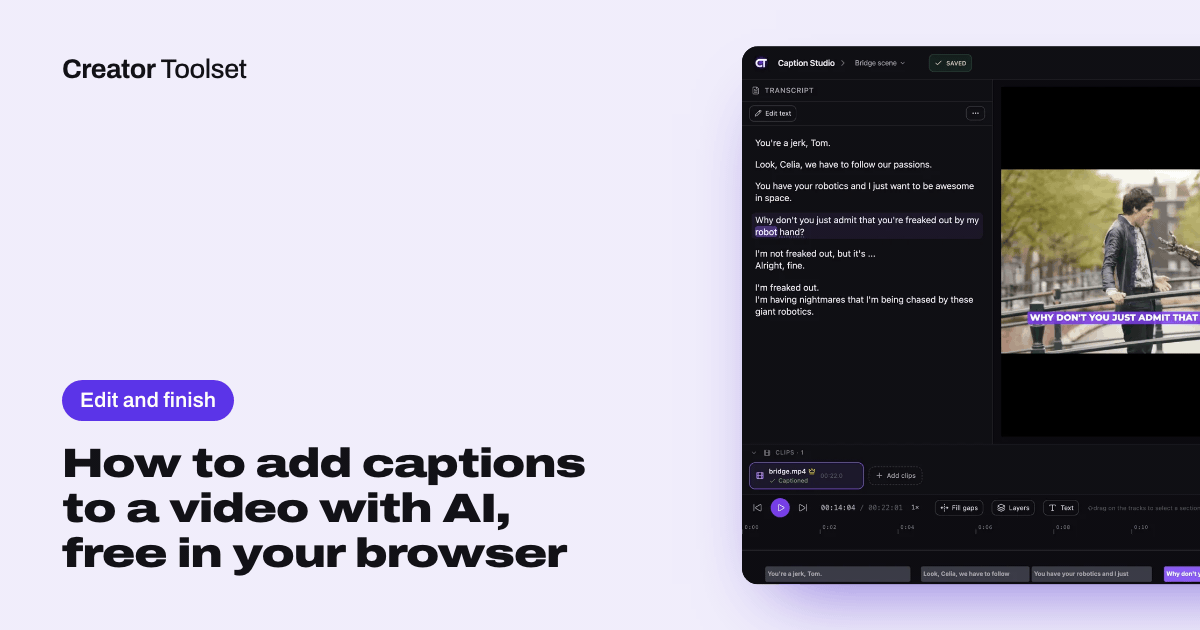 Browser Whisper captions and SRT
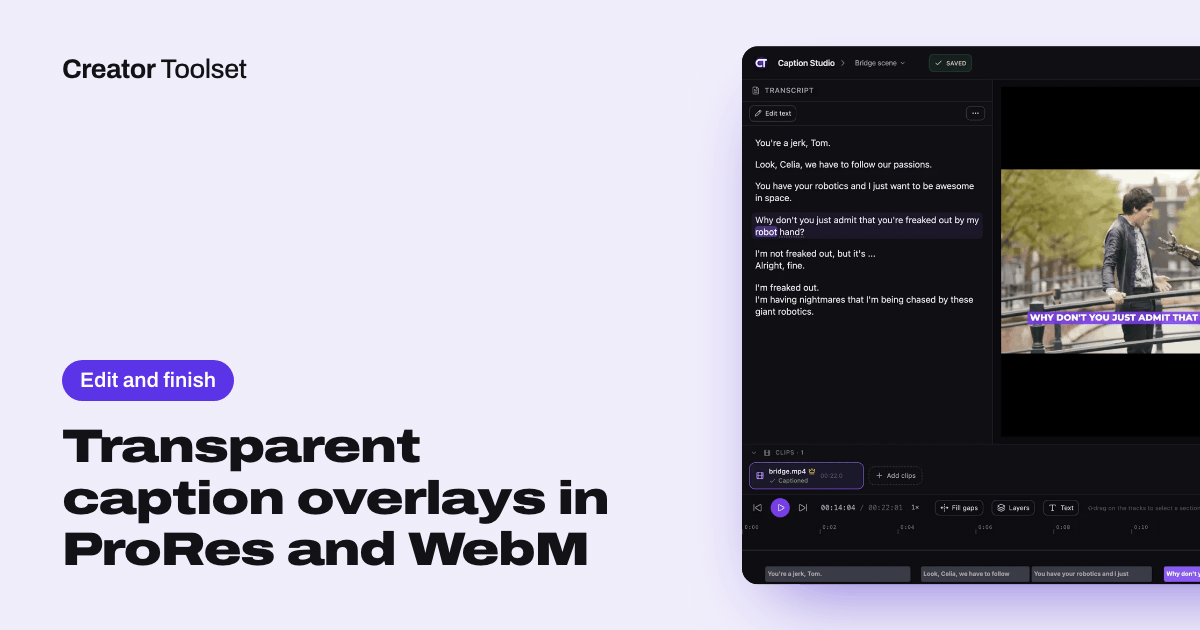 Transparent caption overlay export
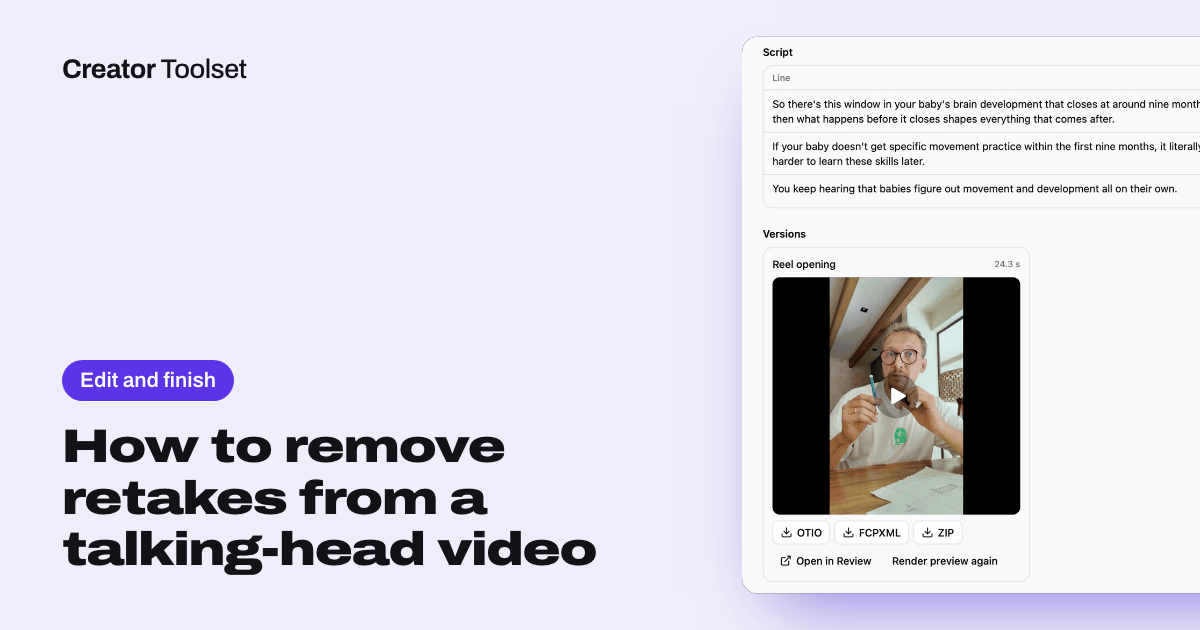 Remove retakes from a take