Cut silences in DaVinci Resolve, and keep the pauses that matter
By Andri Peetso, maker of Creator Toolset · Updated
The first pass of a talking-head cut runs nine minutes. About a minute of it is quiet: a breath before each answer, a look at the camera while you think, a few seconds of room tone while you search for the next point. You want these gone, but a straight cut through every gap makes the speaker sound rushed.
DaVinci Resolve has a command for this on a selected clip: Clip > Audio Operations > Ripple Delete Silence. It is on the Cut and Edit pages. Blackmagic added it in DaVinci Resolve 20.2 (20.2 New Features Guide), and the DaVinci Resolve 21.1 Reference Manual, page 773, still describes it. The manual marks Studio-only tools such as Voice Isolation as "Studio Version Only", and it does not mark this command. So the command is probably in the free edition too. Check the Clip menu in your own copy.
Remove the silence in Resolve
- On the Cut or Edit page, click the clip on its track.
- Choose Clip > Audio Operations > Ripple Delete Silence.
- Look at the red stripes on the audio. Each stripe is a silence the command would remove.
- Set the controls, then check the stripes again:
- Threshold (in dB): audio below this level counts as silence. A higher value removes more.
- Pre Head and Post Tail: the silence kept before and after each piece of speech.
- Minimum to Trip (in frames): the shortest silence that gets cut. A higher value leaves more pauses.
- Crossfade audio: smooths each join when the head and tail leave enough room.
- Click Remove.
The manual says the audio under the stripes is cut, and the clip is ripple deleted, so the sections close up and everything after them moves. Blackmagic's pages do not say how a linked video track behaves in that case. Run the command on a copy of the clip first, and check the picture at each join.
The first failure: words sound chopped
If speech sounds clipped at the joins, change these two settings. A lower Minimum to Trip makes more strips, and the remaining audio can sound chopped up. Raise Minimum to Trip so only the longer silences go, and raise Post Tail so each word keeps its ending. Then run the stripes again. If the result is worse, press Cmd Z and try the next setting.
Keep the pauses that do a job
The command cuts by length and loudness. It does not know what a pause is for, so decide which silences to keep before you click Remove.
- The pause before a punchline. The silence gives the line room. Set Minimum to Trip high enough that this gap survives.
- The pause after a question. The viewer needs a second to answer it. Keep it, even though the speaker will not be talking.
- The breath before a new point. A short one can stay. A long one reads as hesitation, so it can go.
Write down the timecode of each pause you want to keep, then check the stripes against that list before you click Remove. The command works from the clip's audio and its settings, so it will not protect a pause for you.
Padding stops word endings being clipped
A word ending is clipped when the cut starts too close to the last sound of the word. The fix is padding on both sides of each piece of speech. Post Tail adds room after speech, and Pre Head adds it before. Start with a few frames on each side, then listen to the joins.
For comparison, the cut step in Creator Toolset's AI Editor starts with 0.08 seconds kept after speech and 0.04 seconds before it. It cuts silences of 0.28 seconds or more. These are starting values, and they will not suit every speaker. They give you a scale to start from.
Two other ways
ffmpeg's silencedetect, driven by an AI agent. If you already use Claude Code or another agent on your computer, and ffmpeg is installed, the agent can find the silences and report their times. The filter's documentation on ffmpeg.org lists the options. noise sets the level, and its default is -60 dB. duration sets the shortest silence to report, and its default is 2 seconds. mono checks each channel on its own. The filter only measures. It logs the start and end of each silence, and something still has to cut the clip. Keep the original file, and ask the agent to write the cut list to a new file.
A draft from a tool that cuts pauses along with the retakes. The AI Editor's cut tightens pauses by loudness and also removes the restarts its transcript shows. Descript's pricing page lists Shorten Word Gaps, which shrinks or cuts silences in conversation, as limited on the free plan. Pick one when the clip has many takes as well as dead air, because the restarts are the part a single silence command cannot see. Whichever tool you use, you still review the result. The retake guide covers that check.
Review the cut quickly
- Play the clip at normal speed with the sound on. Do not watch it at double speed, because the joins are where the errors are.
- Go to each stripe and check the join. Listen for a word that starts late or ends early, and for a breath cut in half.
- Check the pauses you marked. They should still be there.
- Watch the first and last second of the clip, where a cut tends to leave a sound behind.
When every join plays cleanly and the marked pauses are still in place, the silences are cut.
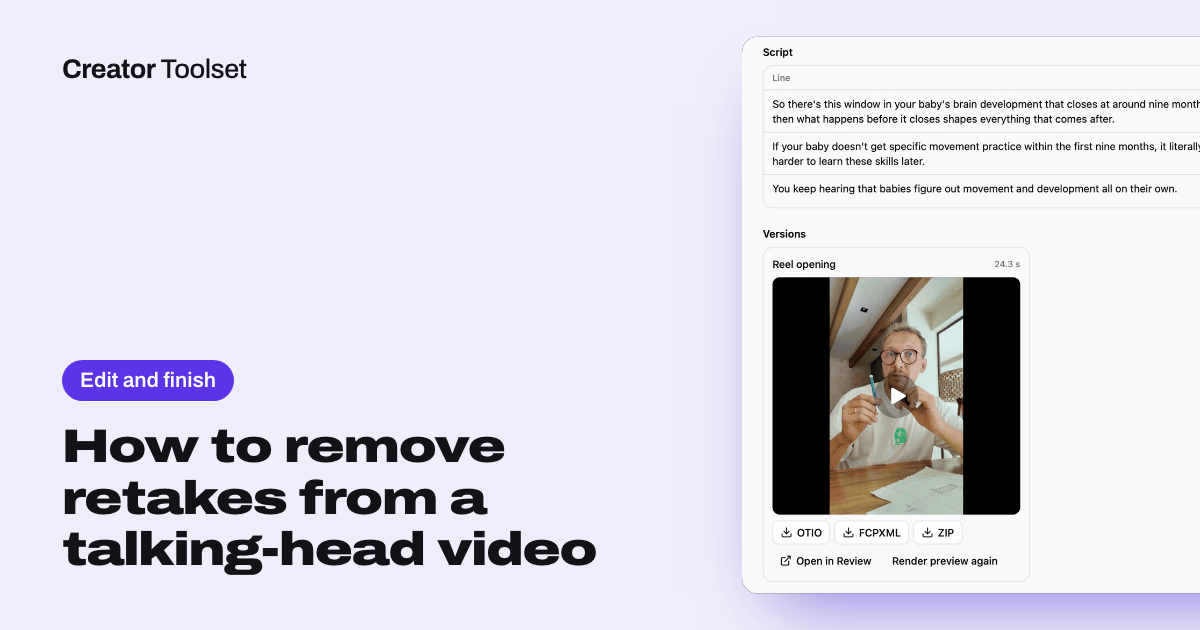 Remove retakes from a take
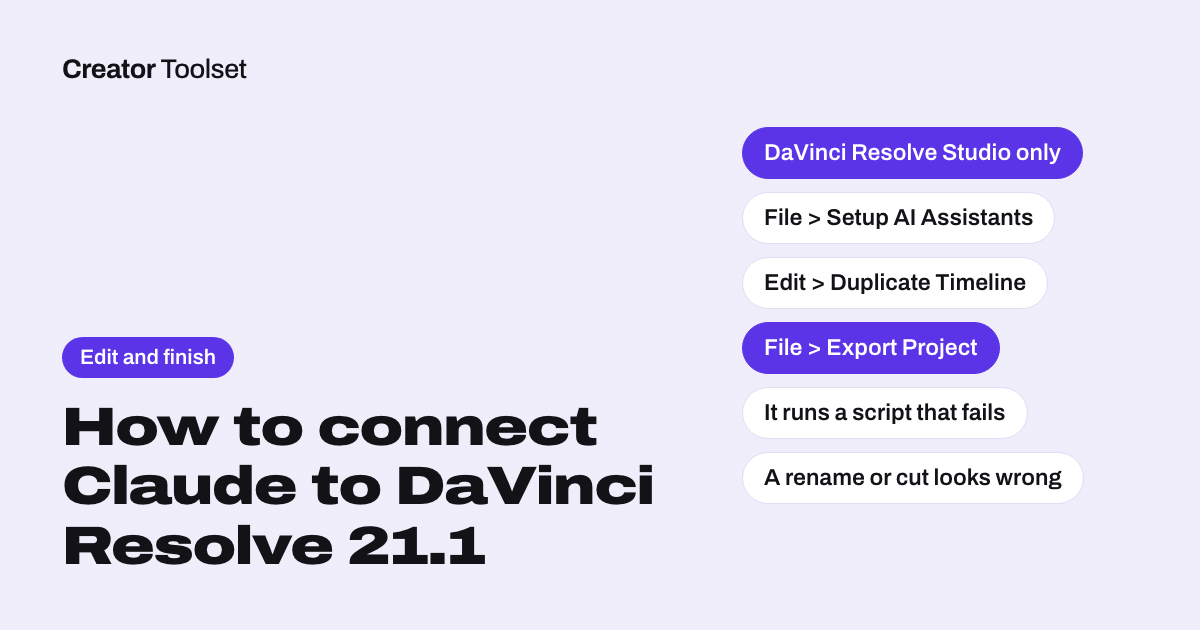 Set up the Resolve AI assistant
 Browser Whisper captions and SRT