Cut one finished video into 20-second stories, in your browser
By Andri Peetso, maker of Creator Toolset · Updated
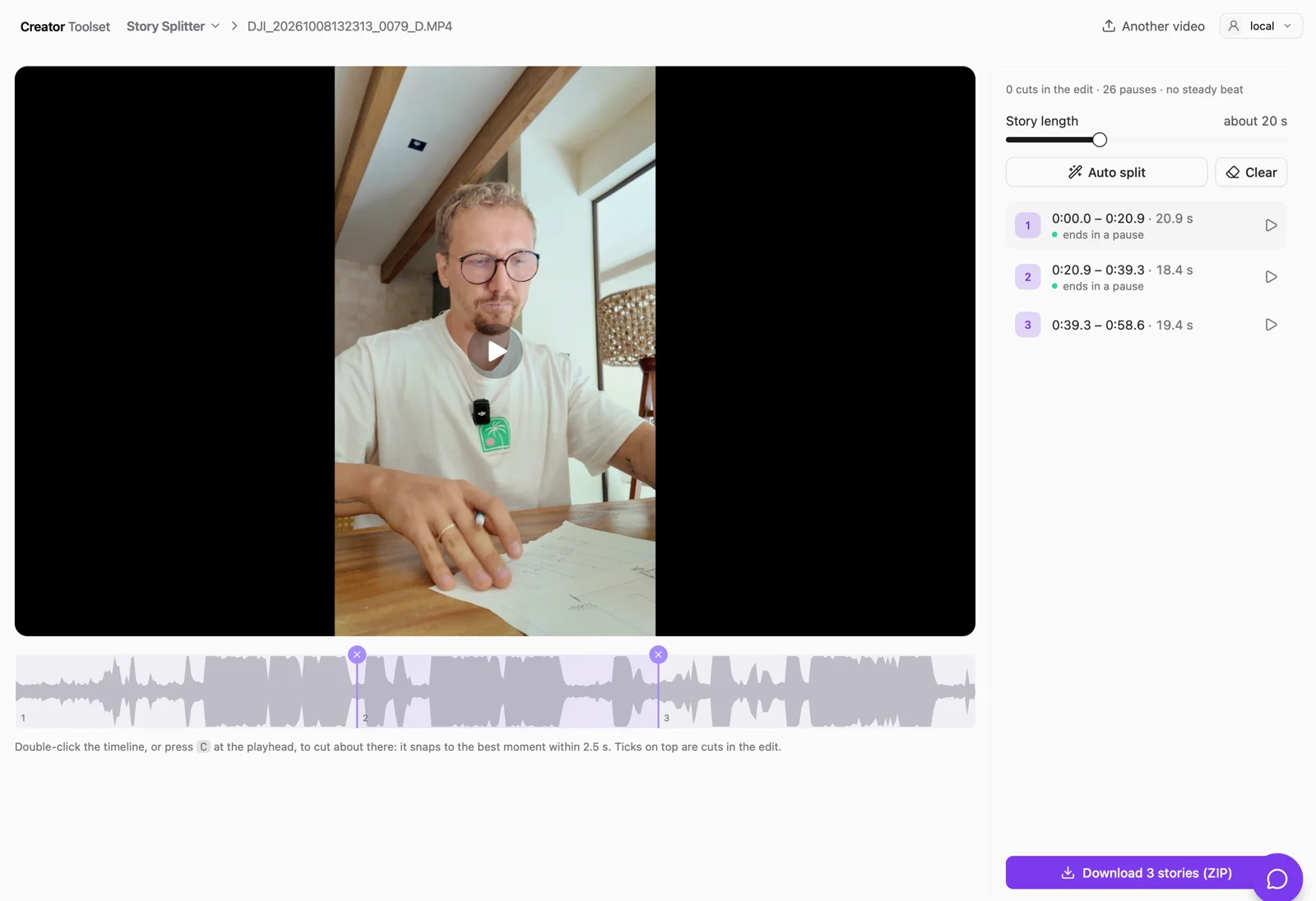
You have one finished video, and you want to post it as a run of short stories, each about 20 seconds long. Cuts that land in the middle of a sentence or a half-second after a shout look bad, and finding the clean spots by scrubbing the timeline takes a while.
What it is
Story Splitter takes one finished video and places cuts so each story lands close to a target length, 20 seconds by default. It is one of the tools in the free, open-source Creator Toolset Mac app. You bring nothing extra: the split needs no AI key and no transcription key, and it runs in your browser. The output is a ZIP of MP4 files.
Where it came from
Story Splitter is one of the app's original tools. It is our own idea, with no existing product as its model.
What you do with it
- Open Story Splitter from the Extras on the home screen. If it is not there, switch it on under Settings → Tools.
- Click Choose a video, or drop a video file on the page. Another video swaps it for a different one. The page takes a video file, not an editor timeline.
- Wait for the line "Finding cuts, pauses and beats". When it finishes, it reads "N cuts in the edit · N pauses · N BPM beat", or "no steady beat".
- Drag the Story length slider. It runs from 8 to 45 seconds and starts at 20. The cuts move as you drag.
- Check the cuts above the timeline. Click the timeline to seek. To add a cut, double-click near the spot, or press C at the playhead. The new cut snaps to the best moment within 2.5 seconds. To remove one, click the small X on its marker.
- Click Auto split to place the cuts again while keeping the ones you added. Click Clear to remove every cut and place your own from scratch.
- Click Download N stories (ZIP). The file is named after your video, with
-storiesadded.
The job is done when the ZIP opens to one MP4 file per story.
The first thing likely to go wrong is a cut that falls mid-sentence. The planner prefers cuts on a picture change, in a pause, or on the beat, and it avoids cuts through loud sound. A long run of speech can leave no good spot near your target, though. Seek to the cut, find the nearest pause, press C there, and then click Auto split. Your cut stays, and the rest re-plans around it.
The second thing is an error: "This browser can't decode this video. Try Chrome." The browser cannot read that video's codec. Open the same file in Chrome and split it there.
How it works inside
Story Splitter reads the video file itself. It does not read words, so it has no transcript and makes no AI call. It finds three kinds of place to cut, scores them, and then picks a set of cuts from them.
Picture changes. Each frame is shrunk to 64 by 36 pixels in greyscale. The frames are decoded in the browser with mediabunny, an open-source TypeScript media library. The tool measures how much each frame differs from the frame before it. A frame counts as a hard cut when that difference is at least 0.025 and at least four times the median difference of the frames around it. The strength is the difference divided by 0.25, capped at 1.
Pauses. The audio is measured as loudness in decibels, 100 values per second, with all channels averaged. The quiet line sits 35% of the way from the file's 10th-percentile loudness to its 90th percentile. A quiet run of 0.15 seconds or more is a pause. If the whole file spans less than 6 dB, the tool skips the pause analysis, because it cannot tell speech from silence.
Beats. The tool looks for a steady pattern of loudness rises and tests tempos from 60 to 200 beats per minute. A tempo counts only if its correlation reaches 0.25. Then it places a beat at the start of each rise. There is one tempo for the whole video, so a video whose pace changes will get a weak beat grid.
Scoring. A hard cut scores between 0.6 and 1, minus 0.8 times the loudness around it. A cut that also sits in a pause takes the higher of its own score and the pause score, plus 0.3. A pause score runs from 0.4 for a breath to 1 for a pause of a second or more. A cut on a beat gains 0.15. Spots inside loud sound score below zero.
Planning. Between the cuts you placed, a shortest-path search runs over the detected spots and a grid of candidates every 0.25 seconds. Each story costs the square of (length minus target) divided by 30% of the target. A story exactly on target costs nothing, and one 30% off costs 1. Each cut earns its spot score. Stories stay between the larger of 2 seconds or 30% of the target, and the smaller of 60 seconds or twice the target. A stretch between two cuts you placed stays whole, even when it is shorter than that minimum.
Rendering. Each story is trimmed to exact frames and re-encoded in the browser as H.264 video at a "very-high" bitrate, with AAC audio. The stories go into a ZIP with no compression, because MP4 files do not shrink.
One real run. On a 58-second raw take of ours the page found no cuts in the edit, 26 pauses and no steady beat. With the story length at about 20 seconds it placed two cuts, both in pauses, for stories of 20.9, 18.4 and 19.4 seconds. The picture at the top of this page is that run.
What it needs and where it stops
Nothing is needed to split and download. The video is not uploaded: the page says so, and the split runs on your Mac. A saved split keeps only the cut times, a name and the story length on the server, and saving needs an account. The Mac app runs on Apple silicon with macOS 14 or later. You can get it from the download page.
The code states these limits: the slider runs from 8 to 45 seconds, a saved split holds up to 200 cuts, a ZIP over 4 GB fails with an error, and the planner never makes a story longer than 60 seconds.
Story Splitter stops at what it can see in the picture and the sound. It does not read speech, so it cannot tell a sentence from a pause that falls inside it. It adds no captions and does not choose the best moment of a video. If you start from raw takes instead of a finished edit, the AI Editor first cut is the better starting point. If the stories need captions, Caption Studio adds them.
 Opus Clip alternatives
 Best AI tools for editing Reels
 Caption Studio