Get frame-accurate client feedback on a video, without a login
By Andri Peetso, maker of Creator Toolset · Updated
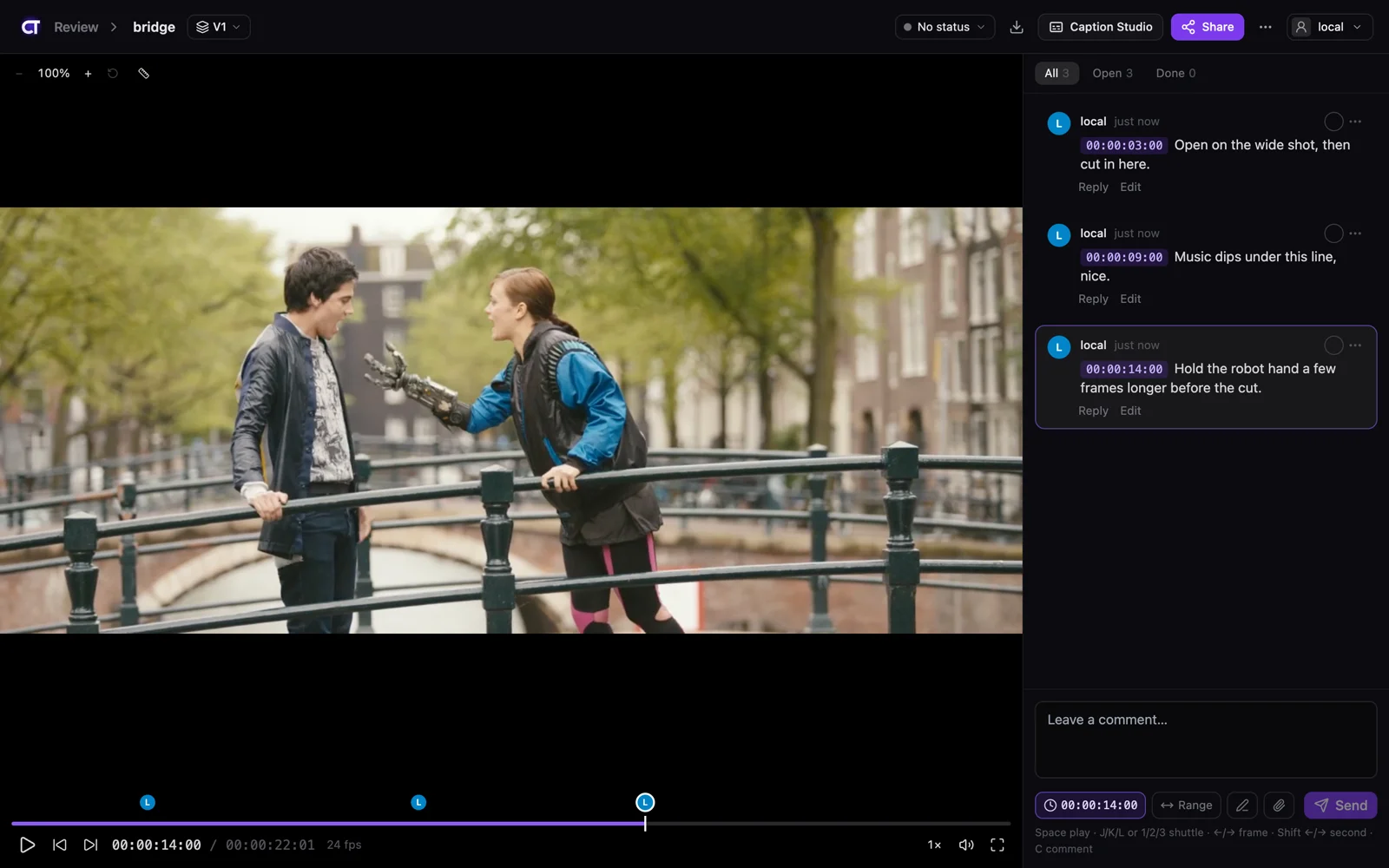
The email says: "the bit near the middle feels off." The cut runs four minutes, and you now have to guess which second they mean, then guess again when they reply.
Creator Toolset's Review gives the client one link. They pause on the frame that bothers them, write the note there, draw on the picture if they need to, and press Approve or Request changes. They type a name, and they do not need an account. Each new version stacks on the same video, so the old notes stay with the version they belong to. The link opens only where your computer or server can be reached. A plain Mac install cannot be reached from the internet, so read the section on who can open the link before you promise this to a client.
Put the cut in Review
- Open Review from the home screen of the Mac app, and upload the cut. The app accepts any format and makes a web copy automatically, such as ProRes or HEVC.
- Optional: under Add timeline file, upload the timeline as OTIO, XML, FCPXML or EDL. Its tracks then show under the player, so the client can see where a clip starts.
- Press Share. The popover reads "Review link. Anyone with the link can watch every version and comment. No account needed." Keep Link on switched on. Turn on Reviewers can download only if the client should get the file.
Get the note pinned to a frame
- Send the link. Copy it from the box in the Share popover.
- The reviewer opens it, types a name in Your name, and pauses the video on the frame. The page says "Pause on a frame and write one below." Their note stays on that timecode.
- For a note about a picture, they press Draw on the frame and mark the area. Undo stroke removes the last mark.
- They press Approve or Request changes. The status also has a menu with No status, In progress, Needs review, Changes requested and Approved.
Work the notes and upload the next version
- Open the notes in timeline order. Each one shows its timecode, its text and the drawing if there is one.
- Make the change in your editor.
- Press Upload new version… and choose the new export. It stacks as the next version of the same video.
- Press Compare two versions side by side to check the change at the notes' timecodes.
- Press Mark done on a note only after the change is in the new version, and Reopen if it is not.
The first failure: "This review link is off or doesn't exist"
The client sees that line where the video should be. There are three likely causes. The link is switched off with Link on. You pressed Reset link, which makes a new link and stops the old one. Or the client has an address that does not match the one you copied, because the app builds the link from the address you opened it at. Open Review at the address you want to share from, press Share, copy the link again, and send that one.
Who can open the link
- Your Mac only, by default. The server runs on your Mac and listens on
127.0.0.1. A link from it opens on that Mac and nowhere else. - People on your Wi-Fi. Turn on This Mac → Access from other devices. The app asks for a password of your own, six characters or more, then listens on every network interface. A reviewer on the same network opens the link at your Mac's address, port 43128 by default. Copy the link while you sign in at that same address, so it works for them. This is plain
httpon your local network. - Clients on the internet. A plain install cannot do this on its own. The dependable setup is your own server. SELF_HOSTING.md sets up the app in Docker on a server with a public address, your own domain and HTTPS through Caddy. The guide also allows a machine at home, with ports 80 and 443 forwarded on your router. Files then sit on that server, not your Mac. Connect is for your own signed-in devices, not for clients, so do not plan a client's link around it.
Do not forward a port to your Mac for a client without reading that guide first. It covers the domain, HTTPS and backups, and the Mac app's own password does not replace them.
Check that the client can open it
Open the link on a phone with Wi-Fi turned off, so the request comes from outside your network. If the video plays and the note box takes text, the link works for a client. If it fails, the cause is in the reach section above, and the fix is one of those two setups.
The same job with no tool
You can run a review with email alone. Name each export with the client, cut and version, such as ClientName_CutName_V2_2026-11-10.mp4. Ask the client to reply with one line per note, in this form:
01:14:22 the cut lands before the line finishes
Tell them the frame rate of the file (for example 25 fps). The timecode only matches if their player shows the same frame count you used, so a 24 against 25 mismatch moves every note. Email is free and needs no setup. The cost is that you type each note into your editor by hand, and nothing stacks the versions for you.
Where Creator Toolset fits
Before the approved file goes out, strip its location and camera data. Review is one tool in the free Mac app. A reviewer needs no account and nothing to install. The link reaches the server that holds the file, so decide where that server is before you send it. The free review tool comparison sets Review beside other free options, and the Whisper caption guide covers the captions you may want to show in the same cut.
 Free client review tools compared
 Browser Whisper captions and SRT
 Creator tool stack costs