Best free video editing software in 2026
By Andri Peetso, maker of Creator Toolset · Updated
You are cutting your first client video on a Windows PC, and the export finishes with a logo across the middle of the frame. You open a second editor, and it exports cleanly, but it stops at 720p. Free editors differ on three things: a watermark on the picture, the highest resolution you can export, and the time or credit limit that ends your month early. This guide shows what each free option gives you on its vendor's page today, and where the free part stops.
We make Creator Toolset. It is on this list for the first pass, captions and review, and each pick says who should choose something else.
The short answer
- If you want a full editor with no monthly bill and you can export up to 4K, pick DaVinci Resolve's free edition. Its page lists Mac, Windows and Linux.
- If you want exports with no watermark on Windows or in a browser, pick Clipchamp's free editor. It exports up to 1080p.
- If you make short social clips from templates, pick CapCut's free plan. Its limits are not stated on the vendor page, so test an export first.
- If your footage is on an Apple device and you need a simple editor, pick iMovie. It is free on the Mac App Store.
- If your videos are mostly talking and you can live with 60 minutes a month, pick Descript's free plan. Its exports carry a watermark.
- If you cut on a phone, pick Edits or VN. Both are free, and both list exports with no watermark.
- If you want an editor with no license fee and you can check its platform list yourself, pick Kdenlive or Shotcut, both open source under GPL version 3.
What "free" means for each tool
Prices and limits read on each vendor's page on 10 November 2026. Limits change, so open the vendor link before you start a project.
| Tool | Platforms (as stated) | Watermark on export | Limit that matters | What moved behind a paid plan |
|---|---|---|---|---|
| DaVinci Resolve (free) | Mac, Windows, Linux | Not stated | Up to 4K and 60 fps in 8-bit | Studio, at $236 to buy: 10-bit color, up to 120 fps, above 4K |
| Clipchamp | Web editor; Windows app | No watermark | Up to 1080p; storage not stated | Premium, through Microsoft 365: 4K export |
| CapCut | Windows, macOS (desktop) | Not stated | Not stated | Pro at $17.99 a month, or $149.99 a year: 1,200 monthly credits and 1 TB cloud |
| iMovie | iPhone, iPad, Mac | Not stated | Simple edits only | Nothing: the app is free on the Mac App Store |
| Descript | Not stated on vendor page | Yes, on exports | 60 media minutes a month, 720p, 5 GB storage, 1 GB upload | Hobbyist: $24 a month billed monthly, or $16 billed annually. 1080p, no watermark, 10 hours a month |
| Filmora | Windows and Mac (desktop); iOS and Android | Yes, on free exports | AI Mate: 15 free uses a day | Basic (price not labelled on the page): 4K export and no watermark |
| Edits | iOS, Android, Mac (Apple silicon) | No watermark | Mobile export length not stated | Nothing: free |
| VN | iOS, Android, Mac, Windows | No watermark | Export resolution not stated | Not stated |
DaVinci Resolve (free edition)
Resolve's free edition is a full professional editor. The vendor page says it works with almost all 8-bit formats up to 60 fps and up to Ultra HD 3840 x 2160, which is 4K.
Pick it if you want a complete editor, with color grading and audio tools, and you do not want a monthly bill. Count your own monthly work against the limits before you start.
The free edition's page does not state a watermark or a GPU limit, so test an export on your own machine before a deadline depends on it. Studio is the paid edition. Blackmagic sells it as a purchase ("Buy Online Now") at $236, and it adds 10-bit color, up to 120 fps and resolutions above 4K. The vendor page lists 10-bit color and 120 fps only in Studio, so check your camera's format against the free limit.
Vendor page: DaVinci Resolve, with the free and Studio comparison. For a first job with Resolve's silence removal, read how to cut silences in Resolve.
Clipchamp (free)
Clipchamp is Microsoft's editor. The free version runs in a browser, and there is a Windows app. The pricing page says exports carry no watermark, and free exports go up to 1080p.
Pick it if you are on Windows and want to start without paying or installing a large program. The free version includes free stock and effects, and OneDrive backup is included, though its size is not stated.
Premium, with 4K export and the full AI video tools, comes through a Microsoft 365 plan, and the pricing page does not give that price. Full AI video creation needs a Copilot license. The pricing page lists silence removal and AI subtitles. Check on that page which of them the free plan includes before you build a workflow on them.
Vendor page: Clipchamp pricing.
CapCut (free plan)
CapCut is a video editor with templates, effects and color tools. Its desktop app runs on Windows and macOS.
Pick it if you make short social clips and want templates to start from. The free plan lists free templates and basic editing tools.
Its watermark, export resolution, storage and credit limits are not stated on the vendor page, so check them on CapCut's pricing page and export a test clip before you rely on the free plan. Credits are per plan, and extra credits are sold separately. The paid Pro plan is $17.99 a month or $149.99 a year, and it includes 1,200 monthly credits and 1 TB of cloud storage.
Vendor page: CapCut desktop.
iMovie
iMovie is Apple's editor for iPhone, iPad and Mac. It is designed for simple edits.
Pick it if your footage is already on an Apple device and you need titles, transitions and a music track, with no new software to learn.
iMovie is free on the Mac App Store, and it is built for simple edits. A talking-head job takes more hand work here than in the tools above, since Apple's pages do not describe transcript editing or automatic captions. The App Store listing names the macOS version it needs, so check that against your Mac before you plan around it.
Vendor pages: iMovie on the Mac App Store and iMovie help.
Descript (free plan)
Descript edits video by changing its transcript. Its free plan gives 60 media minutes a month, 720p exports, 5 GB of storage and a file upload limit of 1 GB.
Pick it if your videos are mostly one person talking, and you want to remove a filler word or a stretch of silence by deleting text. The free plan lets you try that workflow before you pay.
Exports carry a Descript watermark on the free plan. The free plan also has 100 AI credits as a one-time allowance, and several AI features are limited. Hobbyist is $24 a month billed monthly, or $16 billed annually. Creator is $35 a month billed monthly, or $24 billed annually.
Vendor pages: Descript pricing and Descript download.
Filmora (free version)
Filmora is a desktop and phone editor. Its free version exports with a Filmora watermark. Its free AI Mate tool allows 15 uses a day.
Pick it if you want to try its tools on Windows or a Mac before you buy. The Basic plan is the step up that removes the watermark and allows 4K export.
Basic's price is not labelled monthly or yearly on the pricing page, so read the plan card before you choose. The Advanced plan is $59.99 a year and includes 1,000 AI credits a month. The Perpetual plan is a one-time payment, and it updates only within Filmora 16. Read the pricing page for the current figures.
Edits and VN (phone editors)
These two are the free phone editors whose pages state no watermark on exports.
- Edits is Instagram's app. It is free on iOS and Android, and on a Mac with an Apple silicon chip. It is not available for Windows, and it needs an Instagram account.
- VN is free, with no watermark and more than 150 templates. It runs on iOS, Android, Mac and Windows. Its export resolution and any paid plan are not stated on its page, so check them on vlognow.me before you choose.
If your footage is on a phone, a phone editor avoids the transfer step. Check the export size on your phone before a client sends the file on.
Open-source editors
Four open-source tools fit a free budget. Each license is stated in the project's own repository:
- Kdenlive is a multi-track editor under GPL version 3.
- Shotcut is a timeline editor under GPL version 3, with a simpler layout.
- LosslessCut trims a file without re-encoding it, under GPL version 2.
- OBS Studio records your screen and camera, under GPL version 2.
The license tells you what you may do with a copy. It says nothing about export limits or a watermark, so open each project's download page for its platform list and its export options. If you change the code and pass the changed copy to someone, the GPL requires that you include the source. The open-source tools guide lists the license for each tool and how to read it.
Creator Toolset (free and open source)
Creator Toolset is free to download and open source under the MIT license. It is a Mac app for Apple silicon with macOS 14 or newer. It is not a full editor. Its AI Editor reads a talking-head recording, keeps the best take of each line, cuts the pauses and the restarts its transcript shows, and makes a draft timeline (OpenTimelineIO or FCPXML) for your own editor to finish, with a preview in Review. Its captions tool transcribes in your browser with Whisper, so the video is not uploaded. Review gives a frame-accurate link for a client to comment on.
Its limits:
- It runs on Apple silicon Macs with macOS 14 or newer. Windows, Linux and phones are not supported today.
- The first pass uses AI. It runs on your own Claude Code or Codex, signed in on your Mac with your own plan (set up under Settings → Providers), or on an Anthropic API key that Anthropic bills (Settings → API keys). Captions need no AI plan.
- Review links reach this Mac and the same network on a plain install. A client on the internet needs your own server set up first.
Read captions with Whisper in the browser for how the caption step keeps the video on your machine. You can get the app from the download page.
How we chose
The picks come from what each vendor publishes: its free-tier limits, its watermark rules, its export sizes, its platforms and what its paid plan adds. We also looked at what each tool is built to do. We did not test these editors side by side, so this guide does not rank them by speed or quality.
Test a free editor before a real job
- Export a 60-second test from a clip you have already cut, in the resolution you need for your client.
- Open the export and check for a watermark on every frame, including the title cards.
- Count your usual monthly work against the free limit: the minutes, the credits or the number of exports.
- List each paid feature you need, such as 4K, 10-bit color or a longer upload. Find its price on the vendor page before you start.
- If the export and the limit both pass, start the real project. If either fails, move to the next candidate on the list.
 Best video editing software
 Open source tools by job
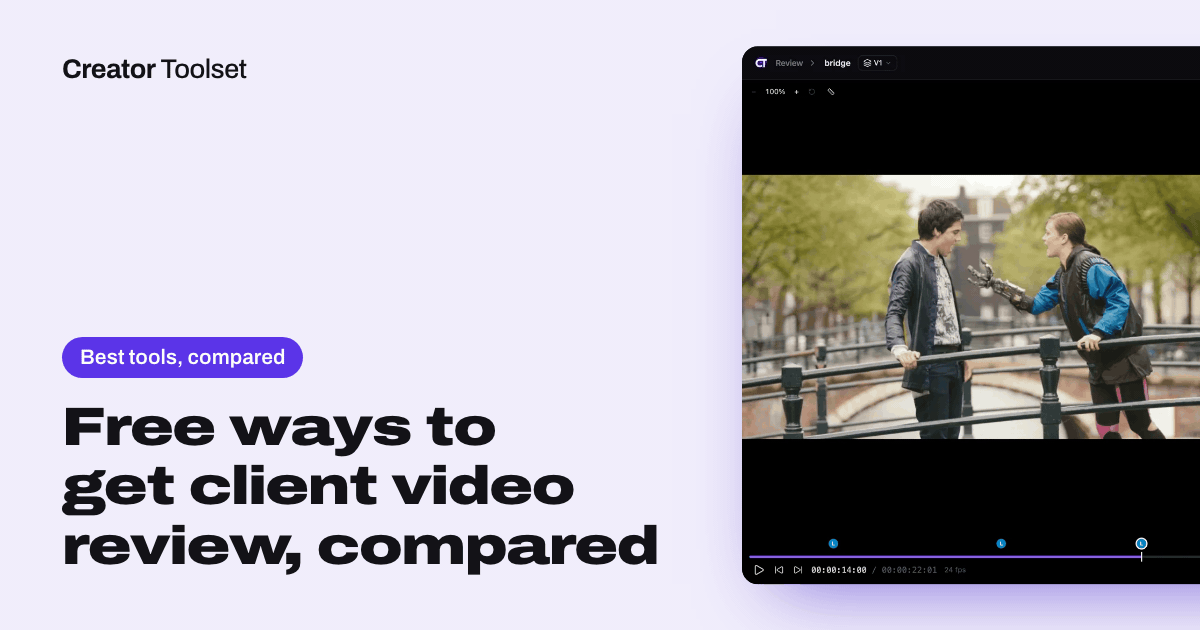 Free client review tools compared