Best AI video editing tools in 2026
By Andri Peetso, maker of Creator Toolset · Updated
You shoot twenty minutes of talking head on a Saturday. Each line was recorded two or three times, with a false start before the good take and a long pause while you check your notes. Finding the best take of each line and cutting the rest by hand takes an afternoon.
AI video editing tools do that first pass. They differ in what happens after it: some remove silences and restarts, some cut a long video into short clips, some only write captions, and some sit inside your editor and take instructions. Pick the tool by the job you have today.
The short answer
- If you have raw talking-head footage and want a first cut, pick Gling, AutoCut, FireCut, TimeBolt, Eddie AI or Descript.
- If you want the first pass as a draft timeline that you finish in your own editor, pick the Creator Toolset AI Editor.
- If you already work in DaVinci Resolve Studio or Premiere Pro, pick DaVinci Resolve with its AI assistant, or the AI Assistant in Premiere Pro.
- If you have one long video and need several short clips, pick OpusClip, Klap, Vizard or Riverside.
- If the main job is captions, pick Submagic, Captions, CapCut or Caption Studio in Creator Toolset.
We make Creator Toolset, and it is on this list where it fits. Each pick below says who should choose something else.
Comparison
Prices were read on each vendor's page on 10 November 2026. Where a page does not state a billing period or platform, the cell says so, and the vendor link below each tool is the place to check.
| Tool | Best for | Platforms | Free tier | Price from |
|---|---|---|---|---|
| Gling | Silences, bad takes, filler words | Desktop | 1 hour a month, watermarked | Plus $10 a month billed yearly ($20 billed monthly) |
| AutoCut | Silences and repeat takes in Premiere or Resolve | Mac and Windows, plugin | Trial only | $6.60 a month billed yearly |
| FireCut | Pause trimming and captions in Premiere or Resolve | Premiere and Resolve plugins | Resolve tools and a Shorts tier | $8.25 a month billed yearly (Resolve Captions) |
| TimeBolt | Silence, filler and bad takes in long video | Mac and Windows | Watermarked, no XML export | $97 a year (Pro Annual) |
| Eddie AI | Scripted edits and B-roll logging | Mac, Windows, web, iPhone | 500 credits | $10 for 1,000 credits, one time |
| Descript | Editing video by editing its transcript | Not stated on vendor page | 60 minutes a month, 720p, watermark | Hobbyist $24 a month billed monthly, or $16 billed annually |
| Premiere Pro | Full editor with an AI Assistant | Desktop and mobile | Mobile app, limits not stated | $22.99 a month, annual plan billed monthly |
| DaVinci Resolve | Full editor, with AI assistants in Studio 21.1 | Mac, Windows, Linux | Yes | Studio $236 to buy |
| OpusClip | Clipping, with captions and B-roll | Not stated on vendor page | One clip a day, watermarked templates | $15 a month (billing period not labelled) |
| Klap | Clipping into vertical clips | Not stated on vendor page | One video trial | $14.50 a month billed yearly (Basic) |
| Vizard | Clipping, with social post scheduling | Not stated on vendor page | 60 credits a month | Not stated on vendor page |
| Riverside | Recording, then clips and AI editing | Not stated on vendor page | 720p, watermarked | $29 a month billed monthly, or $24 billed yearly (Pro) |
| Submagic | Captions and short clips | Not stated on vendor page | No free plan listed | $19 a month billed monthly, or $12 billed yearly (Starter, per member) |
| Captions | Captions and translation on iOS | iOS plans | One caption template | $24.99 a month billed monthly |
| CapCut | Editing with auto captions and smart search | Windows and macOS (desktop) | Basic editing and templates | $17.99 a month, or $149.99 a year (Pro) |
| Creator Toolset | First pass, karaoke captions as an overlay, Story Splitter | Mac, Apple silicon, macOS 14 or newer | Free and open source | Free. You pay your own AI plan. |
First pass on talking-head footage
These tools find the silences, restarts and bad takes, then cut them. The result is either an edit in your timeline or a draft you finish yourself.
Gling removes silences, bad takes and filler words, and exports captions as SRT. The free plan gives one hour of edited media a month, with a watermark. Its page says the product is built for desktop only, and its FAQ and feature list disagree on whether the free plan exports XML, so check gling.ai/pricing first. Pick it for silence, bad-take and filler removal in one desktop tool. Unused hours on Plus do not carry over to the next month.
AutoCut is a plugin for Premiere Pro and DaVinci Resolve. It removes silences and repeated takes and adds word-by-word captions. Pick it if you already edit in Premiere or Resolve and want the cut in that timeline. A license runs on one computer at a time. The page gives the trial as both 14 and 28 days, so check autocut.com for the current length.
FireCut is a plugin for Premiere Pro and DaVinci Resolve that trims pauses and adds captions in more than 50 languages. Its Resolve free tools include Remove Silences, a one-time download for Resolve only. Pick it for silence removal inside Resolve without paying first. Paid plans cap transcription hours each month. See firecut.ai/pricing.
TimeBolt is a desktop tool for silence, filler words and bad takes in long video and podcast recordings. Pick it for a long recording you want cut in one pass. The free tier has no XML export and no saved projects. The Pro plans export XML to Premiere, Final Cut and Resolve. See timebolt.io/pricing.
Eddie AI is an AI editing workspace for footage. You give it a script, and it cuts the footage take by take. It also logs B-roll and exports to Premiere, Final Cut and Resolve. Pick it for a video you already wrote. Its page shows credit packs and no subscription price, and it does not state the free-tier watermark. See heyeddie.ai/pricing.
Descript edits video by editing its transcript. Its pricing page lists Remove Filler Words, Shorten Word Gaps and dynamic captions. Pick it if you think in text and want to cut by reading. Hobbyist is $24 a month billed monthly, or $16 billed annually. Creator is $35 a month billed monthly, or $24 billed annually. See descript.com/pricing.
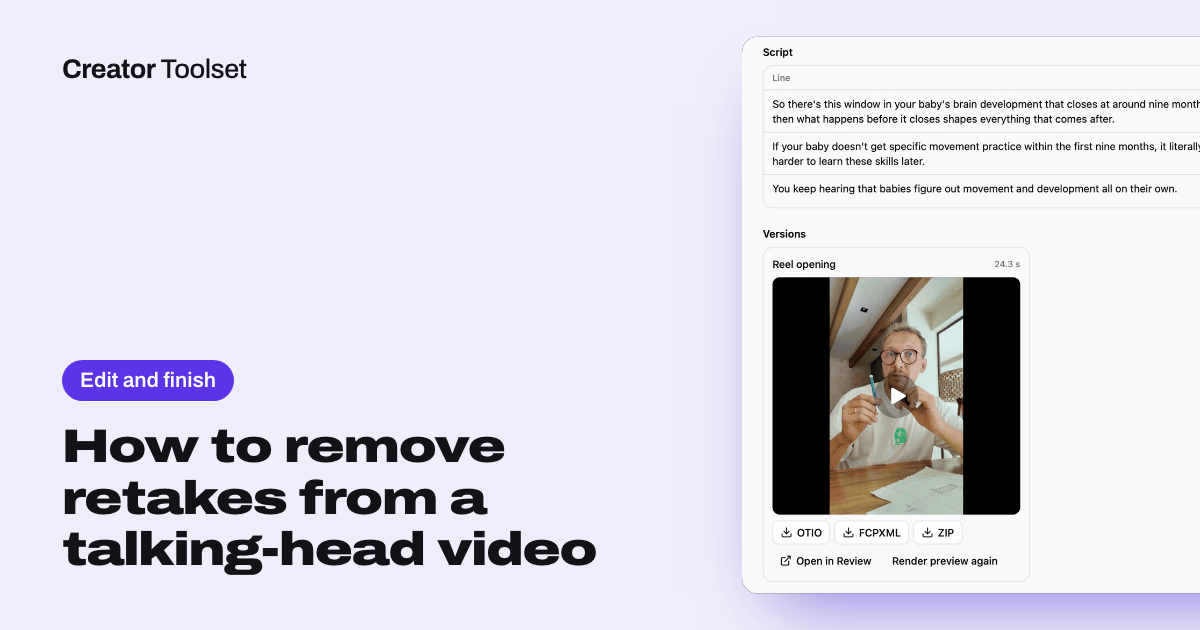
Creator Toolset AI Editor is the first pass in our own app. You pick raw takes from the Media Library and say what the video is. The AI picks the best take of each line and cuts the pauses and the restarts its transcript shows. You get draft timelines (OpenTimelineIO or FCPXML) for your own editor, with a preview in Review. It runs on your own Claude Code or Codex, signed in on your Mac with your own plan (set up under Settings → Providers). Pick it when you want a first cut as a timeline and do the finishing in your own editor. It makes a first pass, not a finished edit, and the Mac app needs Apple silicon and macOS 14 or newer. The process is in remove retakes from a talking-head video.
An AI assistant inside your editor
These tools keep the editing in your timeline and take instructions in a chat.
DaVinci Resolve Studio 21.1 added AI assistant integration. Blackmagic's release of 8 September 2026 names Claude, Claude Code and ChatGPT Codex. You ask for a change in plain words, and the assistant works through Resolve's scripting on clip names, durations, markers and project settings. Pick it if you already finish in Resolve and want renames, markers and settings done from a chat. The assistant works from what the scripting exposes, so check every shot in the Viewer yourself. The setup steps are in connect Claude or Codex to DaVinci Resolve. Blackmagic sells Studio as a purchase at $236.
Premiere Pro has an AI Assistant that, per Adobe's page, sorts bins, batch-renames clips, identifies interview questions and assembles rough cuts. Pick it if you already pay for Premiere. It is subscription only, and the generative features draw on monthly credits. The page does not name silence removal, so pair Premiere with a plugin from the first group for that job. See adobe.com/products/premiere.
Clipping long video into shorts
These tools take one long recording and return several short clips, each with captions.
OpusClip does AI clipping, caption templates, and AI image and stock B-roll. The free plan posts one clip a day, with watermarked caption templates and clip media that expires after three days. Pick it for a steady flow of clips from a weekly recording. Some features are marked "Coming soon". See opus.pro/pricing.
Klap does AI clipping on every plan, with unlimited social accounts and source video up to three hours. The free plan is one video, and downloading or posting needs a paid plan. Basic is $14.50 a month billed yearly and allows 100 clips a month. Pick it when you want a high clip count. See klap.app/pricing.
Vizard turns long video into clips, with one credit for each minute of video, and schedules the posts. The free plan gives 60 credits a month and exports up to 10 minutes. Pick it for clips and scheduling in one place. Its pricing page does not state its plan prices as amounts, so check vizard.ai/pricing before you decide.
Riverside is a remote recording studio. Its Pro plan adds Magic Clips, AI B-roll, and removal of silences and filler words. Pick it if you record the conversation there and want the clips from that recording. Riverside's pricing page warns that its figures may be out of date, so check riverside.com/pricing before you pay.
Creator Toolset Story Splitter cuts one video into stories of about 20 seconds, at the cuts, pauses and beats it finds in the audio, and downloads them as one zip. It runs in the browser, and nothing is uploaded. It finds cuts from frame changes and loudness, so a pause that carries a joke can be cut. Check each split before you post.
Captions
Submagic does Magic Clips, AI hook titles and translated captions. Silence and bad-take removal start on higher plans. Starter is $19 a month billed monthly, or $12 billed yearly per member, and its videos can run up to two minutes. Pick it if you want captions and short clips from one plan. There is no free plan. See submagic.co/pricing.
Captions is an AI video app for captions and translation. Its pricing covers iOS plans only, and the free plan gives one caption template and no AI credits. Pick it if you edit on an iPhone. The Max plan is $24.99 a month billed monthly. See captions.ai/pricing.
CapCut is an editor with auto captions and a smart search that finds clips by objects, dialogue and people. Pick it if you want one general editor with captions. Check the free plan's watermark and export limits on capcut.com/pricing before you rely on it.
Caption Studio in Creator Toolset transcribes the video in your browser with Whisper unless you add a cloud transcription key, so no transcription service gets the video, and it needs no AI plan. Each transcript line becomes a caption you can edit and restyle, and the Animation setting includes Karaoke word highlight. The export is a transparent overlay: MOV in ProRes 4444, WebM in VP9, or a PNG sequence, with SRT, WebVTT and ASS files. Pick it when your edit happens in another app and the captions go on top as a layer. The steps are in local Whisper captions and the transparent caption overlay.
What no tool does yet
No vendor page says its tool watches the picture frame by frame, or knows which pause is part of a joke. These tools work from the transcript, the audio level, the length of a silence or the change between frames. A tool that cuts on silence length cannot tell a setup pause from dead air. Watch the cut with sound on before you ship, and keep the pauses you meant to keep. The longer case is in is AI replacing video editors.
How we chose
The picks come from what each vendor publishes (features, limits, price and platforms) and from what each tool is built to do. We did not test these tools side by side, so this list makes no claim about which is faster or more accurate.
Try two candidates on the same clip
- Choose one three to five minute talking-head clip that you know well, with at least one restart in it.
- Run each tool's free tier or trial on that clip, with the same job: cut the restarts and keep the pauses you meant to keep.
- Open each result and check three things: it kept the best take, it did not cut a line you needed, and the audio stays in sync at every cut.
- If a watermark covers the frame, you cannot judge the cut from that export. Use the trial to judge the cut, then decide whether the watermark-free plan is worth the price.
 Is AI replacing editors
 Remove retakes from a take
 Cut silences in Resolve